Sluis Workspace
Use Chat, agents, Skills and Knowledge. Configure access, models, capabilities and budgets for your organisation.
Start a conversation
Open Sluis Workspace and sign in with your Sluis account. Check the active organisation in the account menu. Workspace must be enabled for that organisation; ask an owner or admin if access is unavailable. The browser, desktop and mobile apps use the same workspace.
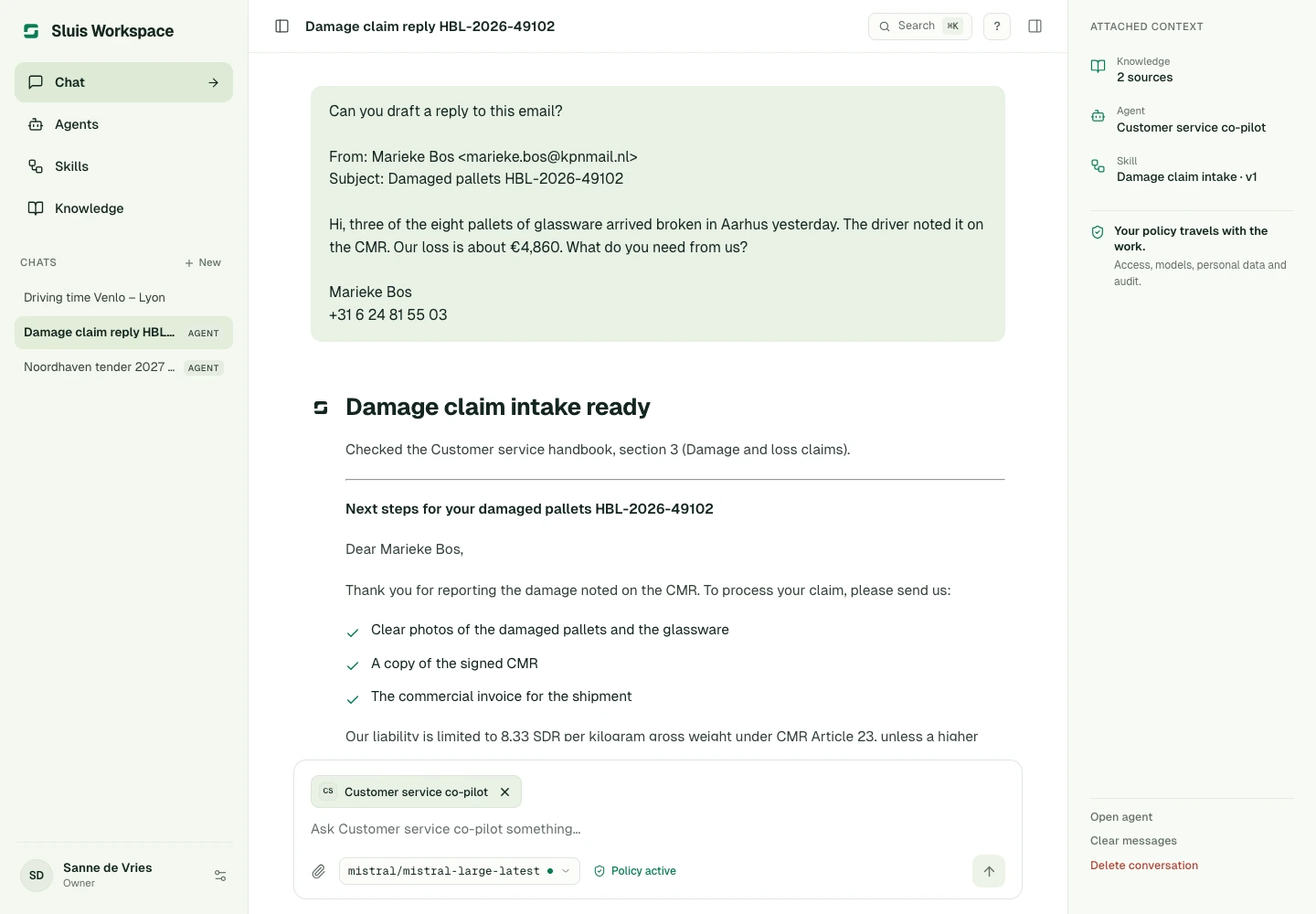
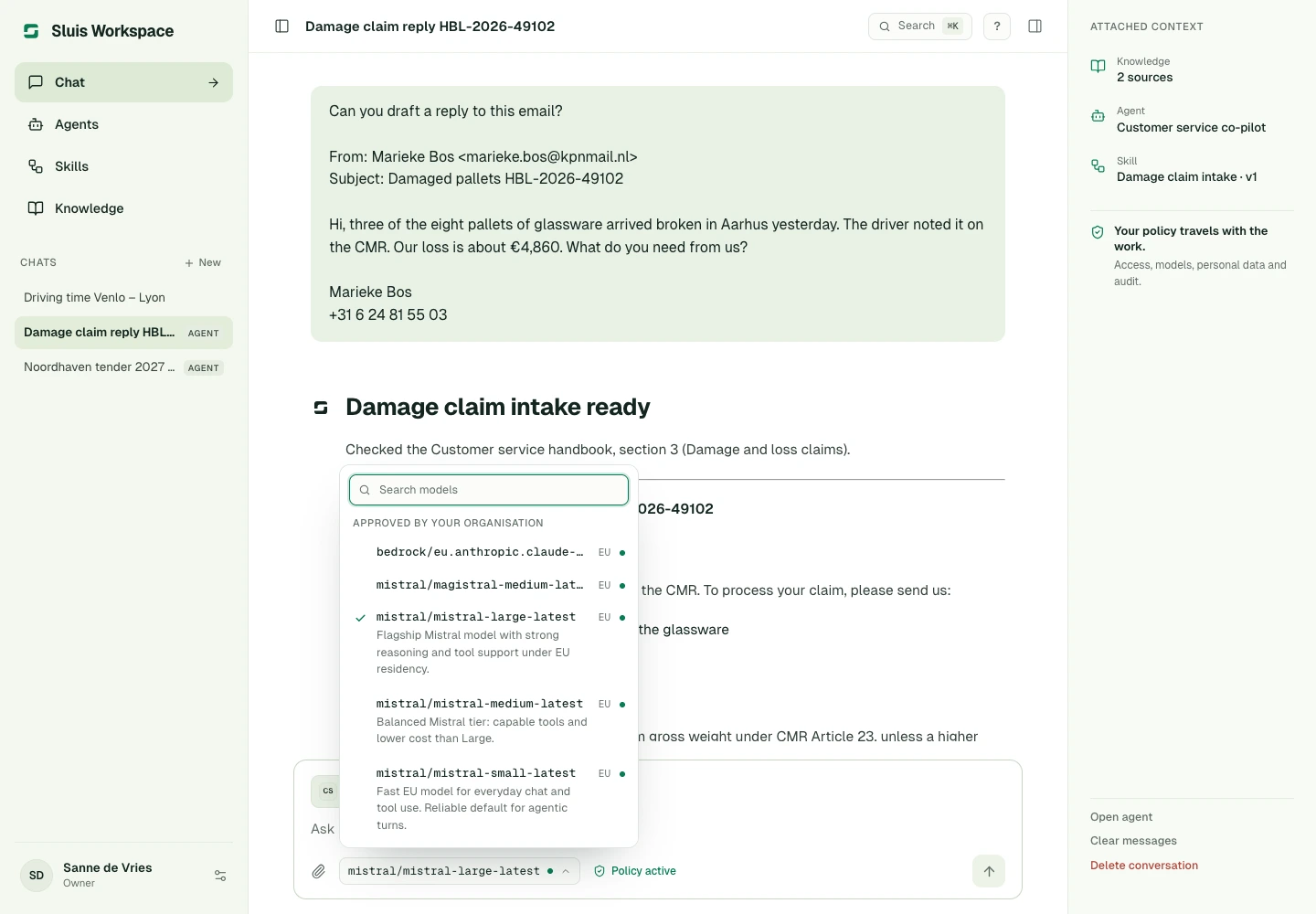
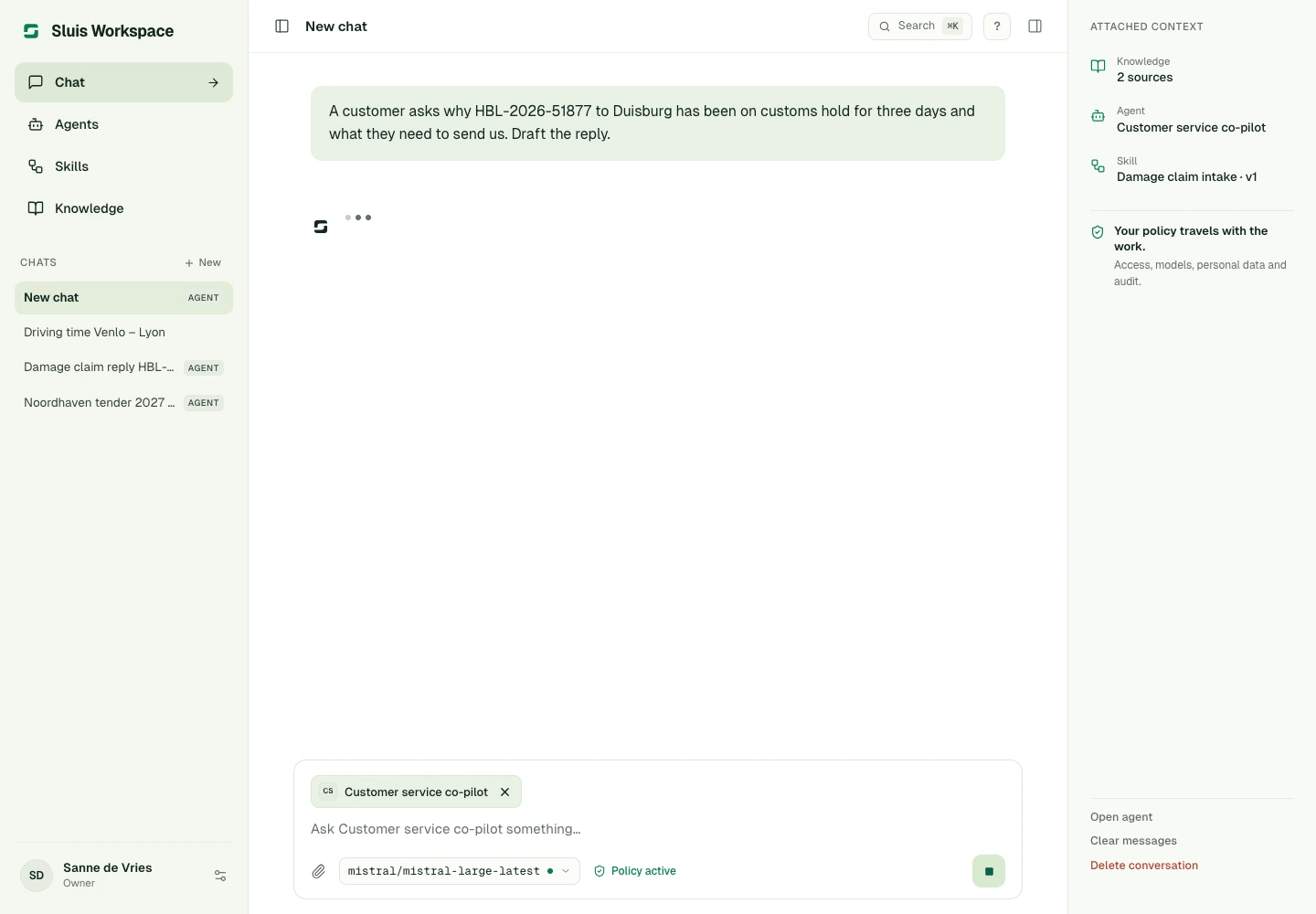
The sidebar leads to Chat, Agents, Skills and Knowledge. Start a new chat, select an available model and send your question. The model picker explains policy restrictions; choosing another model never bypasses them. On desktop, Enter sends when enabled and Shift+Enter adds a line; on touch keyboards Enter adds a line. Reopen or search earlier conversations in the chat list or the command palette (⌘K). The right column shows the context attached to a chat: its agent, Skills, Knowledge and attachments.
While an answer is being written, the send button becomes Stop generating; on desktop, Esc does the same. Stopping ends the turn and keeps the partial answer. In the iOS app, Workspace notifies you when an answer or a scheduled agent run finishes while the app is closed or in the background. The notification names the conversation, never its content.
Attachments and generated files
Use the paper clip in the composer to attach a file of up to 16 MiB: PDF, Word, Excel (XLSX, XLS), PowerPoint (PPTX), text, Markdown, CSV, JSON, PNG or JPEG. Inspect or remove attachments before sending and resolve any upload error first. Availability depends on organisation settings, private storage and the selected model.
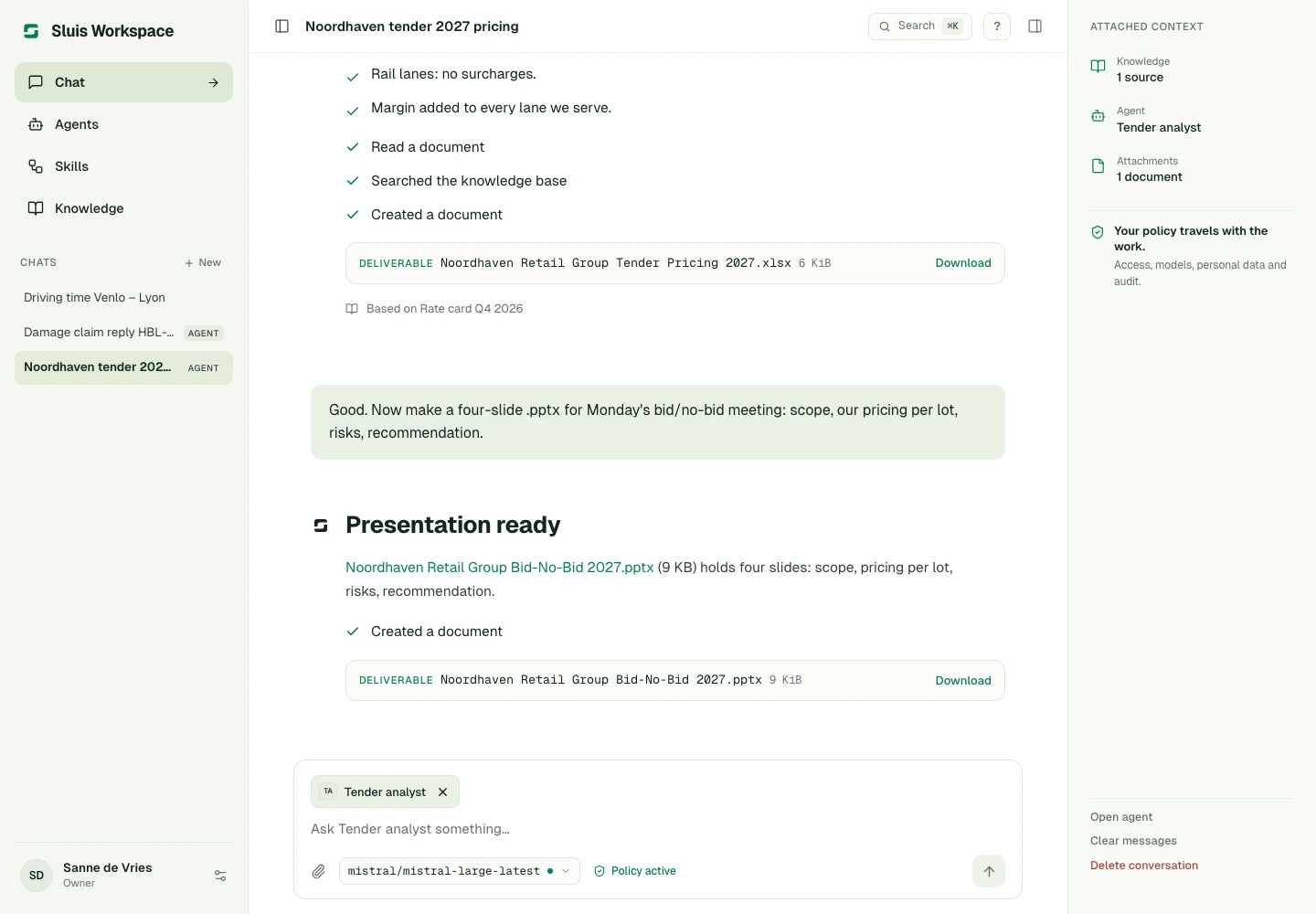
Workspace reads attached documents, spreadsheets and presentations, sheet by sheet or slide by slide when a file is large. Ask in ordinary language for a downloadable Word, PDF, Excel or PowerPoint file, document anonymisation or an image. Created files appear as Deliverable cards with a Download action. An agent can fill the placeholders of its own .docx or .pptx template, and you can attach a template to the chat yourself. Ask Workspace to save an attachment to Knowledge: it stays private unless an owner or admin saves it for the organisation.
These tools must be enabled for your organisation and supported by the deployment. Image generation also needs an available image model permitted by policy. The steps shown with an answer say what ran, for example Read a document, Searched the knowledge base or Created a document. Generated files remain subject to retention and access controls.
Agents, Skills and Knowledge
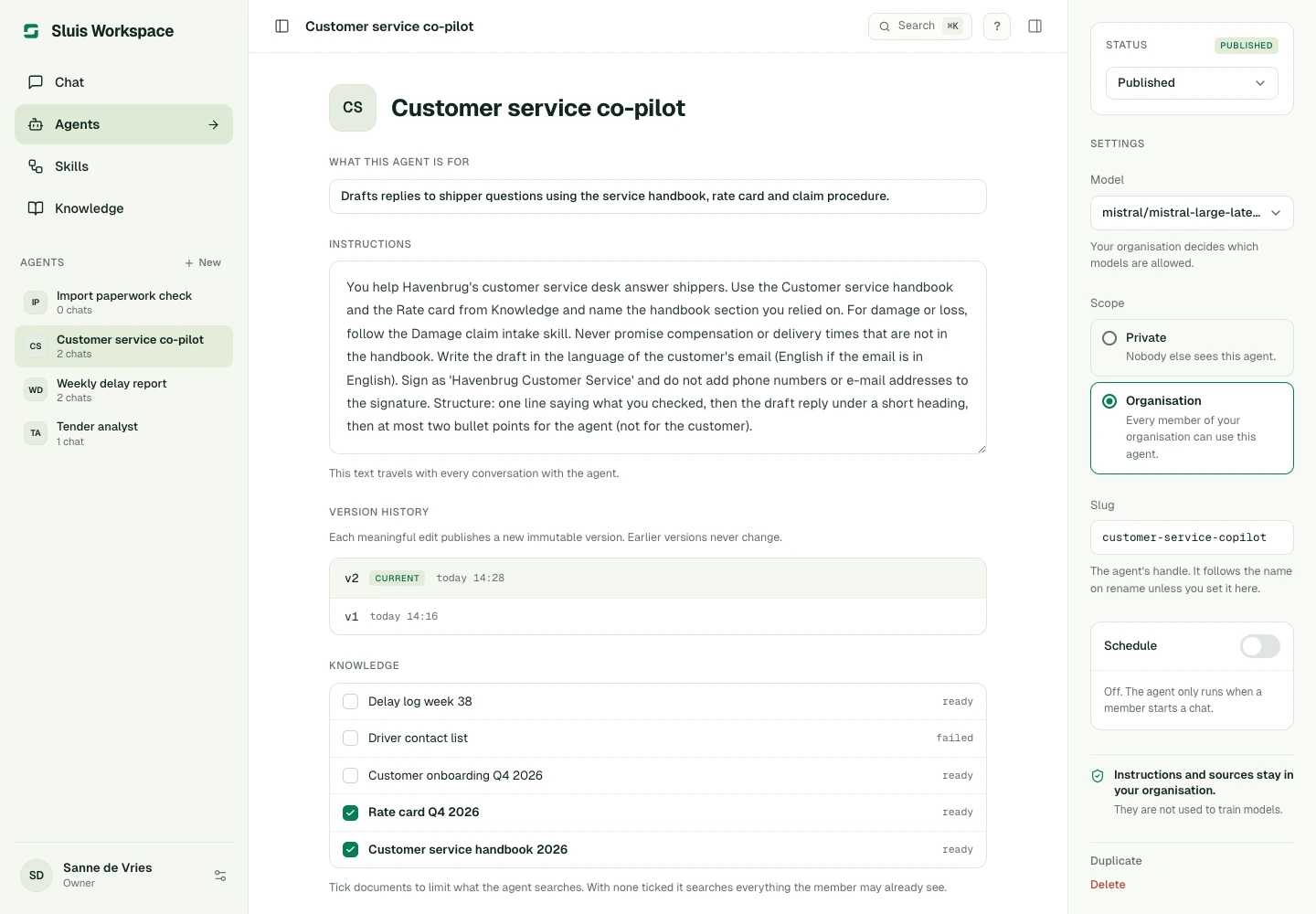
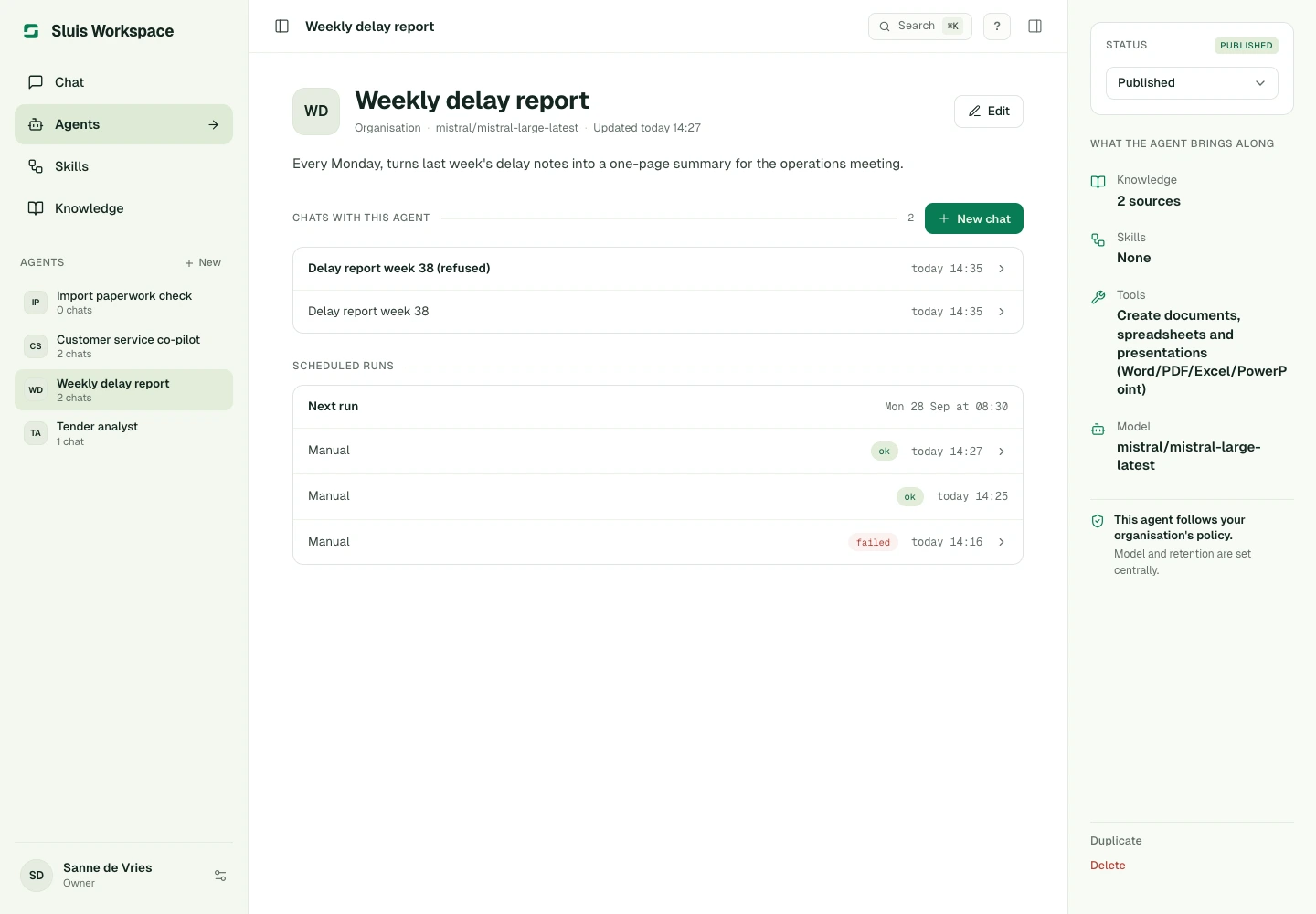
Open Agents, choose an agent and start a chat, or type @ in the composer to select one. An agent bundles instructions, an optional model, tools, Skills and Knowledge. Create a private agent for yourself; organisation agents are shared and only owners or admins may edit them.
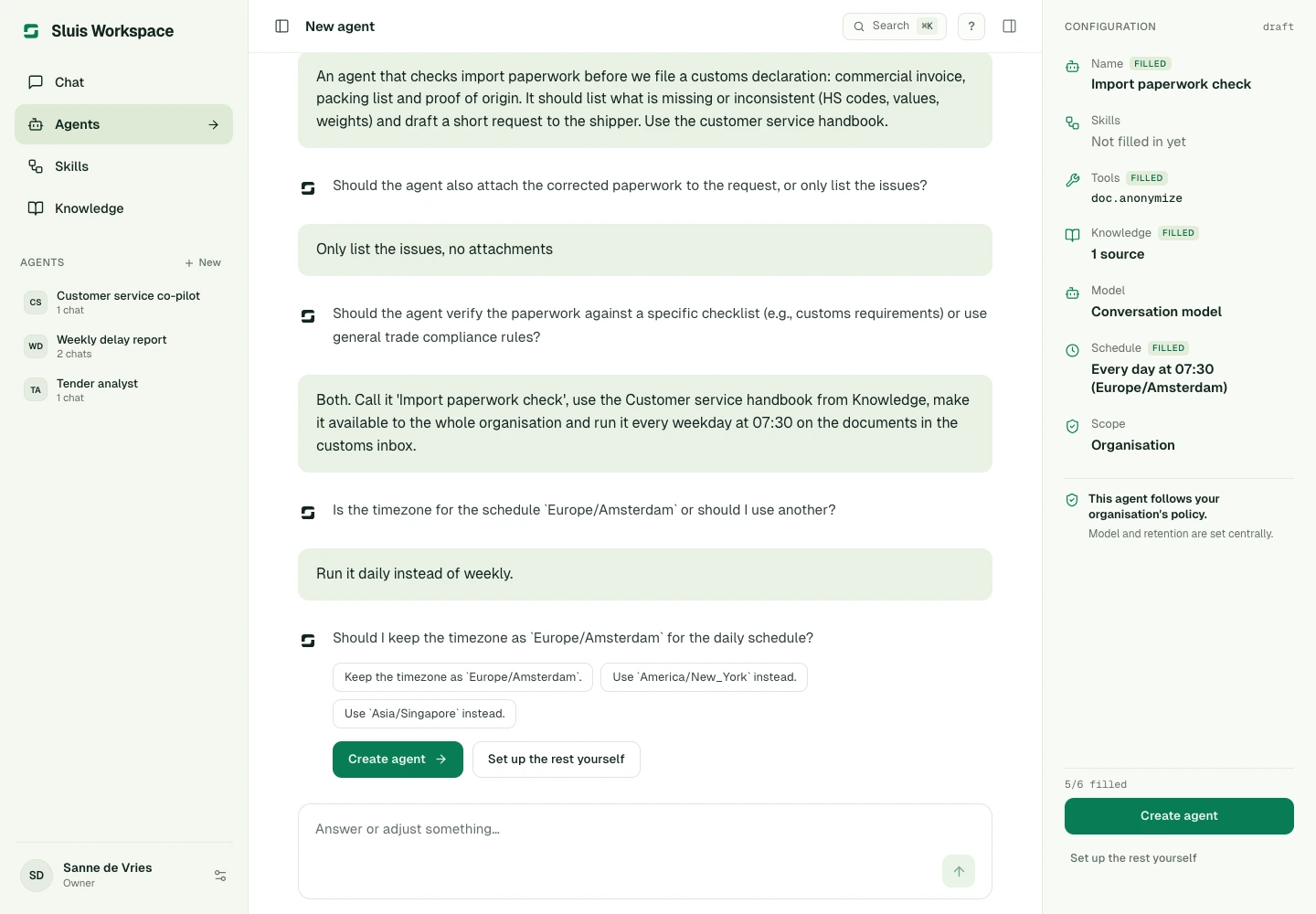
Choose New in Agents to build an agent by describing the work in a chat. Workspace asks a few questions and fills in the Configuration beside the conversation: name, purpose, instructions, Skills, tools, Knowledge, model, schedule and scope. Choose Create agent when it is right, or Set up the rest yourself. Edit on an agent's page opens a conversation to change it; Workspace shows what changes before you apply it. Skills are built the same way. In an ordinary chat, Workspace may offer to turn a repeated task into a private Skill or agent, and creates it only after you agree.
The agent editor saves every change as you make it; there is no Save button. Under Schedule, an agent runs once, daily or weekly at a set time and timezone. Each run starts a fresh conversation with the agent's instructions and runs as the person who set the schedule, under their budget and policy. The agent's page shows the next run and recent scheduled and manual runs with their result.
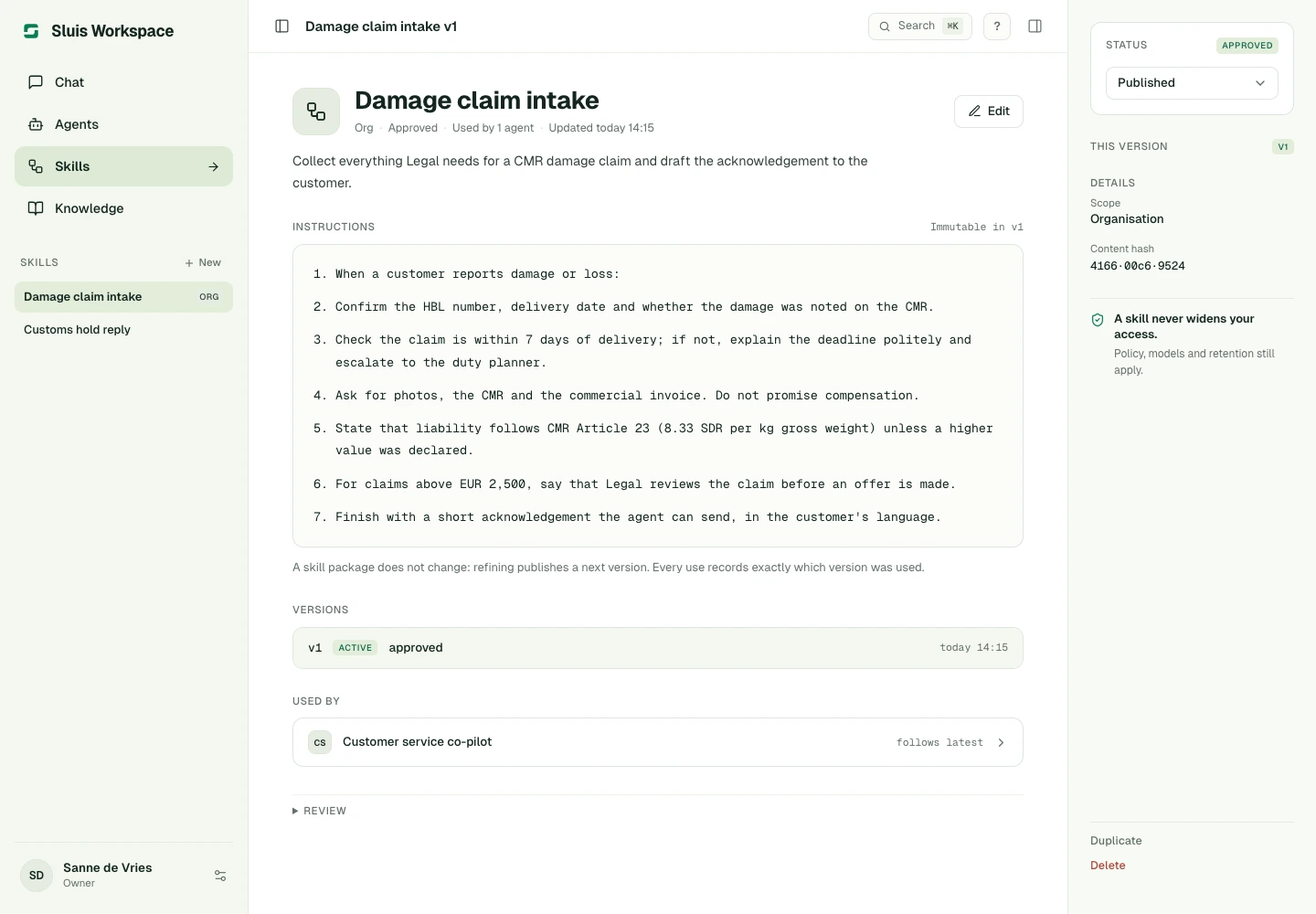
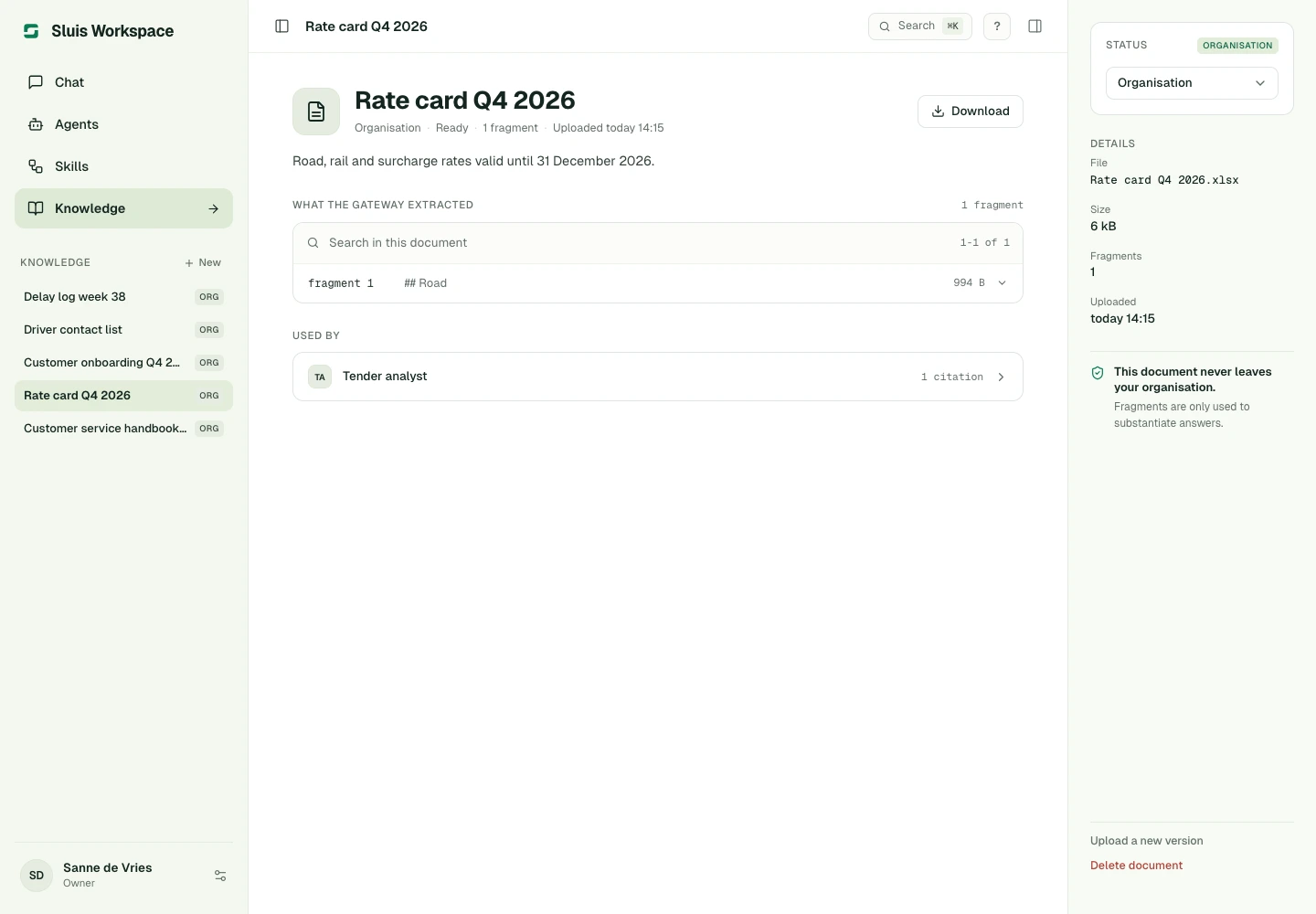
Skills are reusable instructions with published versions: editing a Skill publishes its next version, and every use records which version ran. Link the Skills an agent may use in its editor. Knowledge holds private or organisation documents, including spreadsheets and presentations: upload a document, inspect its status and link it to an agent. If Knowledge screening refuses a document, its page names the categories found; remove that information and upload a new version. No linked Knowledge documents means the agent may search all documents visible to you; no linked Skills means no Skill catalog. Check the sources under answers.
Preferences, policy and receipts
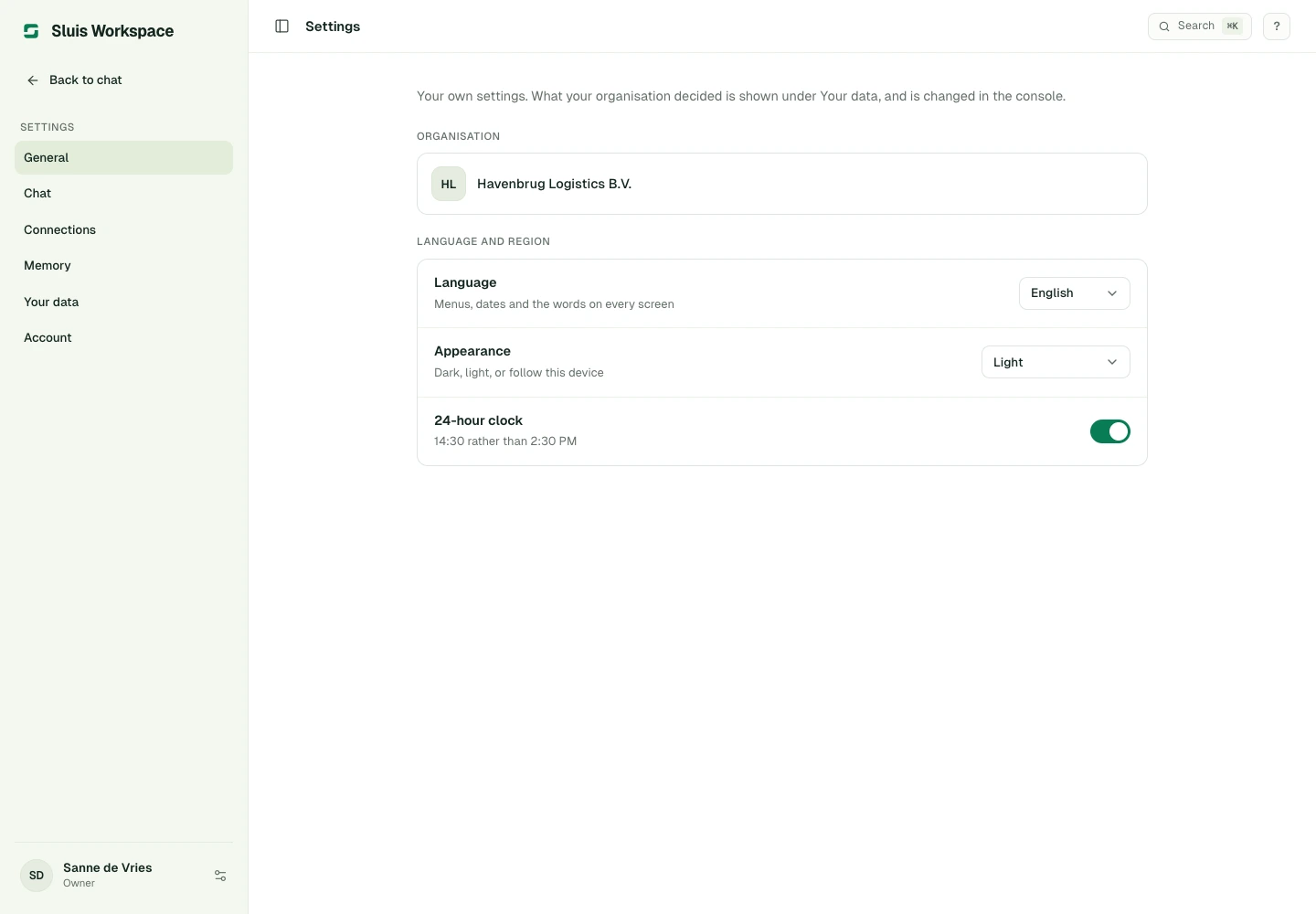
Open Settings from the account menu. General sets language, dark, light or system appearance and the 24-hour clock; Chat sets the default model, Enter behaviour and whether replies show their route. Your data shows the current organisation policy read-only. Personal preferences and agent settings cannot enable capabilities your organisation has disabled.
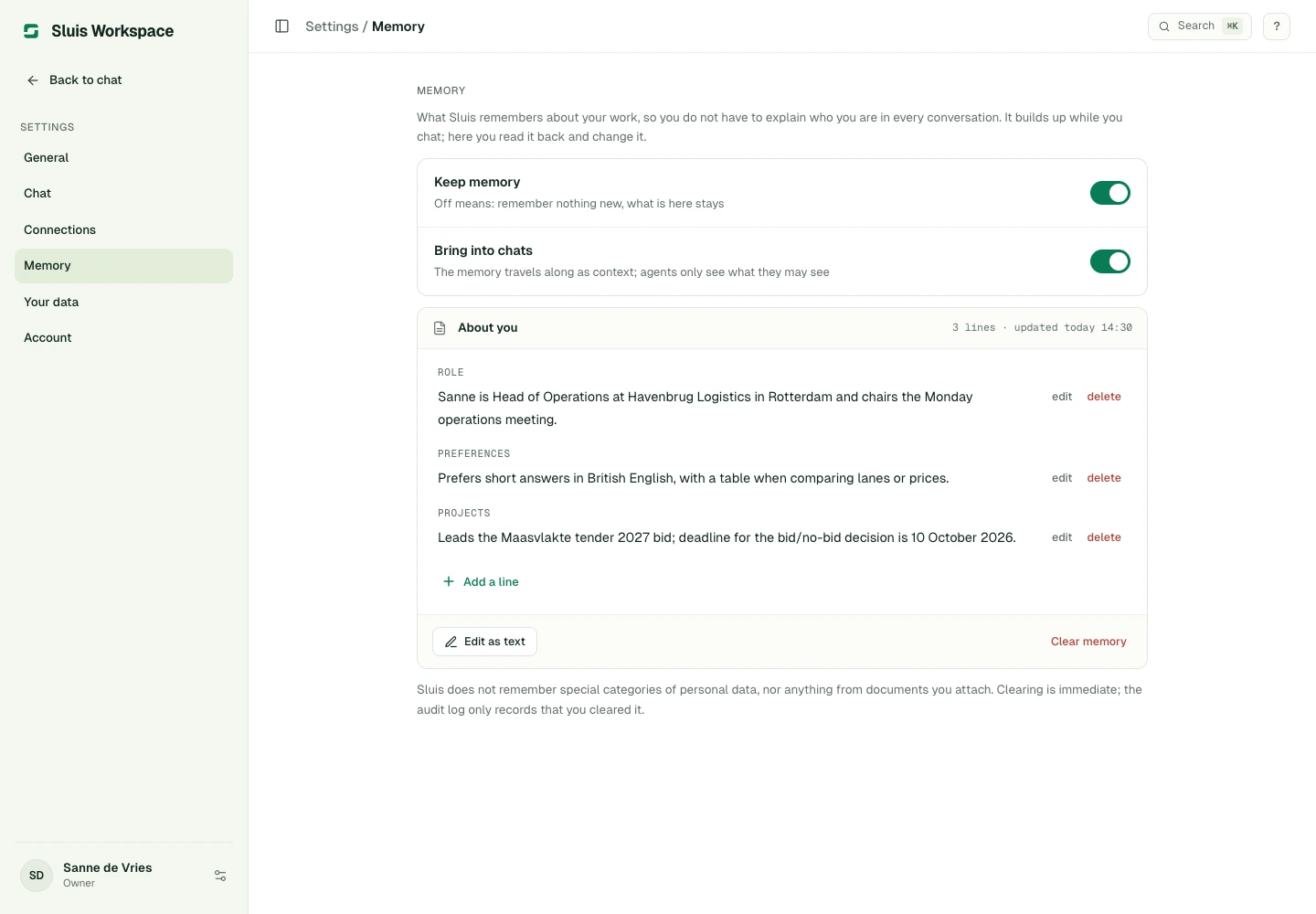
Memory shows what Workspace remembers about your work, grouped by topic. Keep memory decides whether new facts are stored; Bring into chats decides whether they are used as context. Edit, add or delete a line, or clear the memory. Connections links your own account to MCP tools your organisation set up for personal sign-in. When a tool needs that connection, the chat asks you to connect your account and links to Connections.
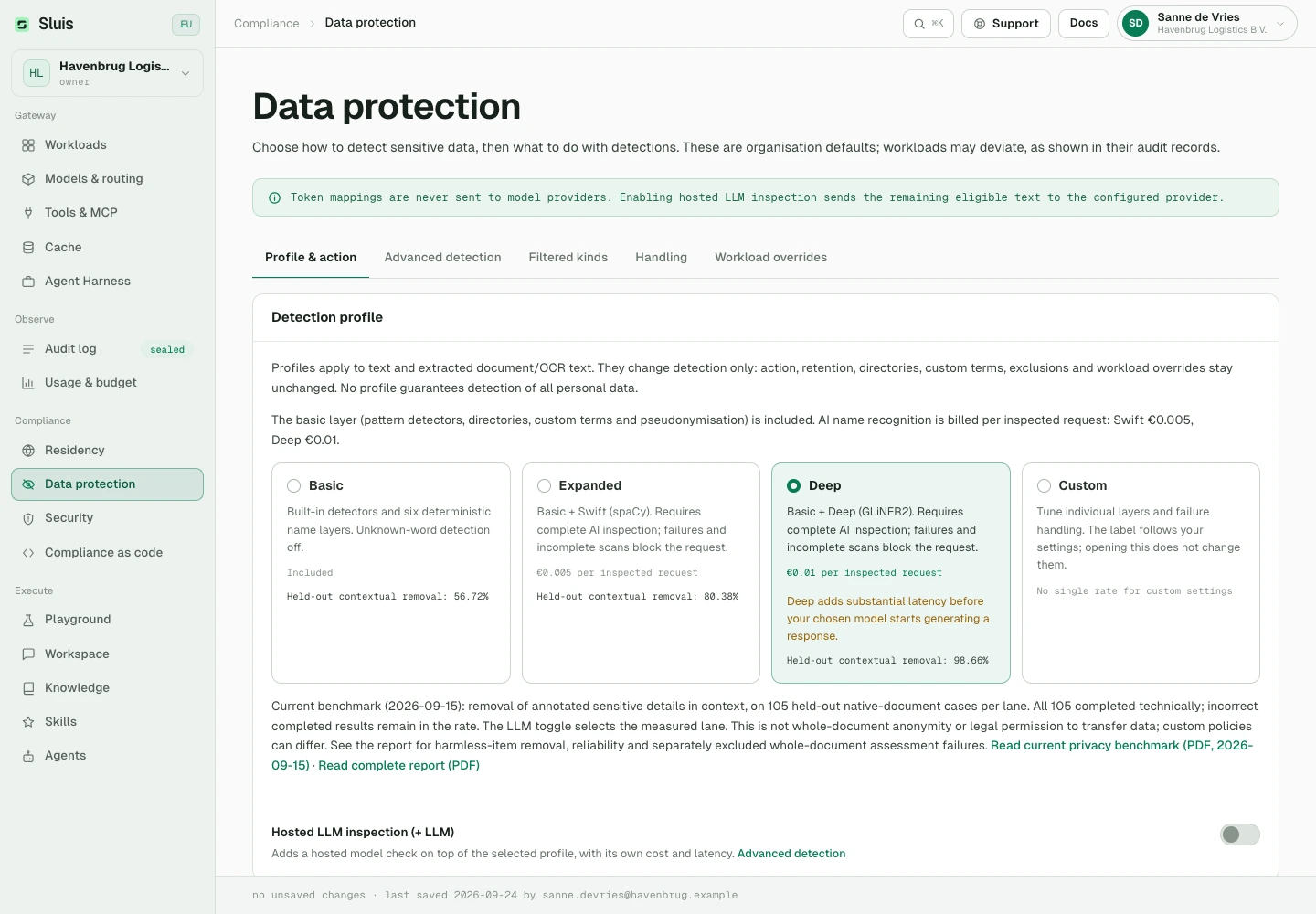
Model and tool calls pass through the gateway controls. Inspect the route and receipt when available; a seal records an audit event, not a guarantee that an answer is correct. Data protection, permitted jurisdictions and retained content depend on the effective policy. Review important output before using it.
Administration and access
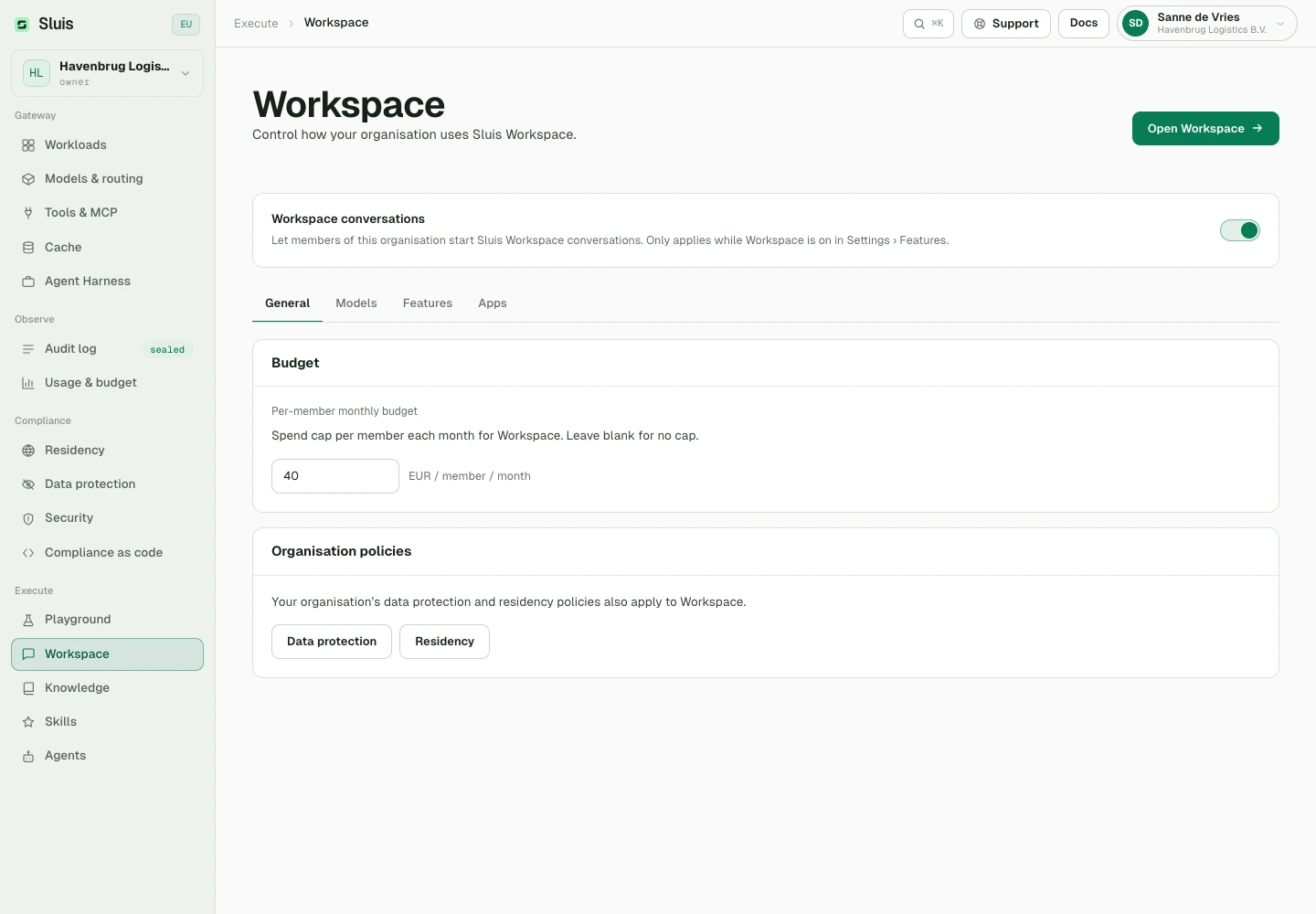
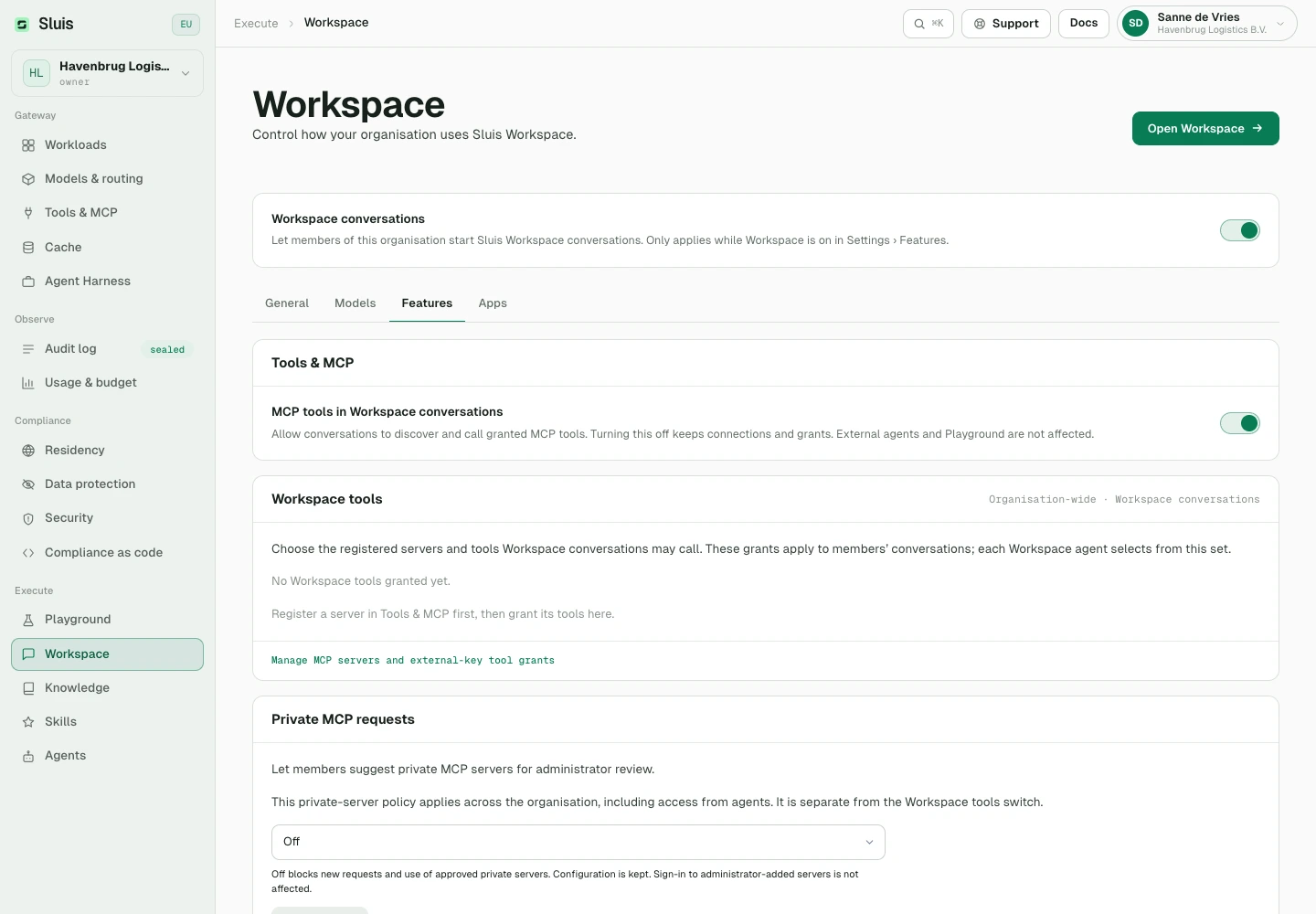
Owners and admins manage Sluis Workspace in the console. Enable the Workspace feature in organisation settings, then open Workspace configuration. General controls whether members can start conversations and sets a monthly euro budget per member; blank means no per-member cap. Organisation budgets and billing still apply.
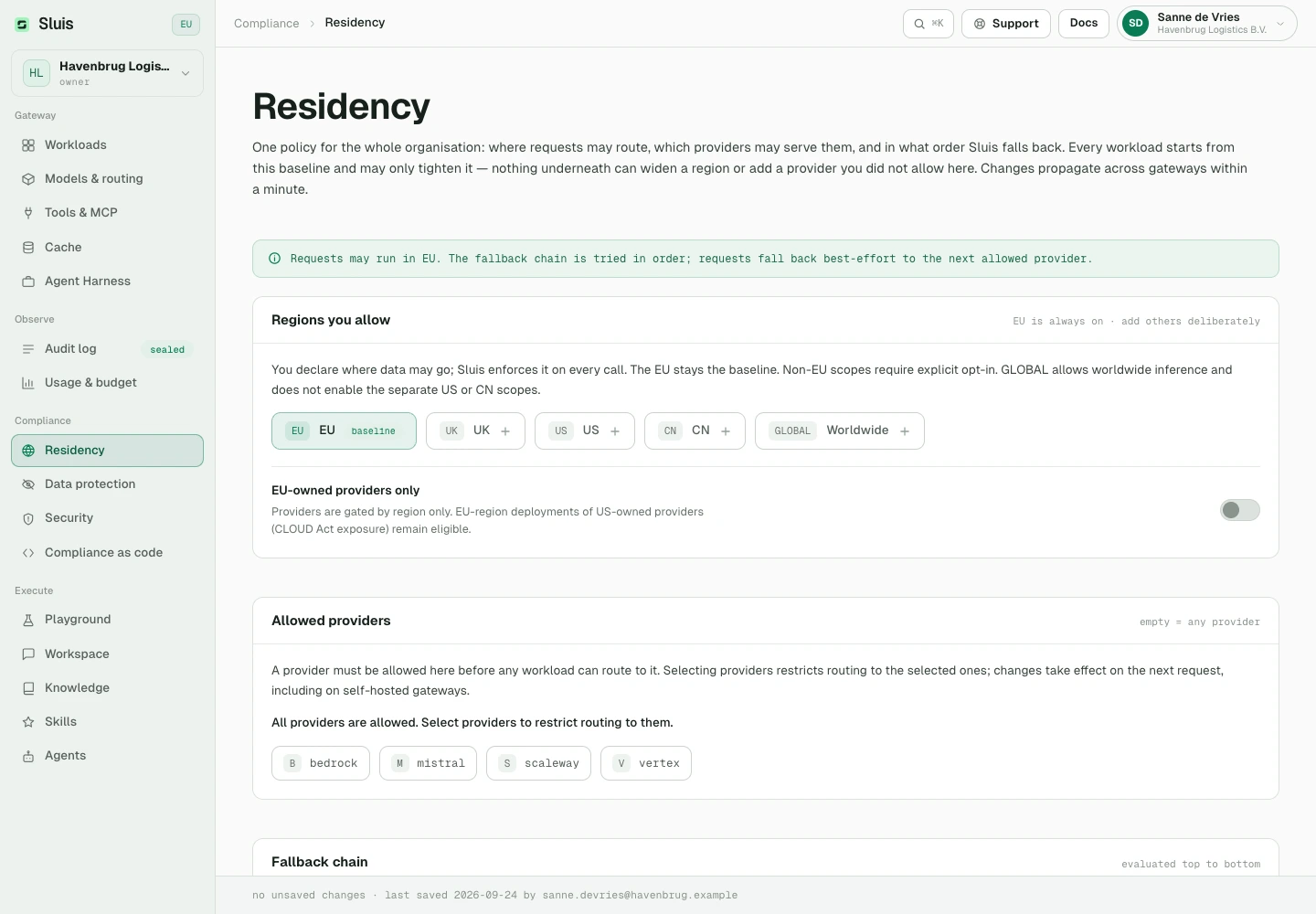
In Models, allow the full eligible catalog or select a restricted set and a default from that set. Residency and provider availability still apply. Save settings to apply changes, or Cancel to restore the saved configuration. Use Members to invite colleagues and manage roles; being a member does not grant administration rights.
Capabilities and shared resources
In the Features tab, configure attachments, document creation, Knowledge upload screening and web search. Attachments need private storage; document creation depends on attachments. Screening checks Knowledge uploads for secrets and personal data and refuses a document in which it finds them. Web queries leave the residency boundary, so keep web search off for an EU-only policy.
The same tab switches MCP tools in Workspace conversations and sub-agents. Turning MCP tools off keeps connections and grants and does not affect external agents or Playground. Sub-agents are off by default; only while they are on may an agent delegate parts of a task to helper agents, whose usage counts toward the budget.
Manage shared agents, Skills and Knowledge in their console sections. Register MCP servers and grant Workspace access under Tools & MCP. An agent only receives the intersection of its selected tools and the organisation grants. Disabling an organisation capability cannot be undone in an agent editor.
Usage and troubleshooting
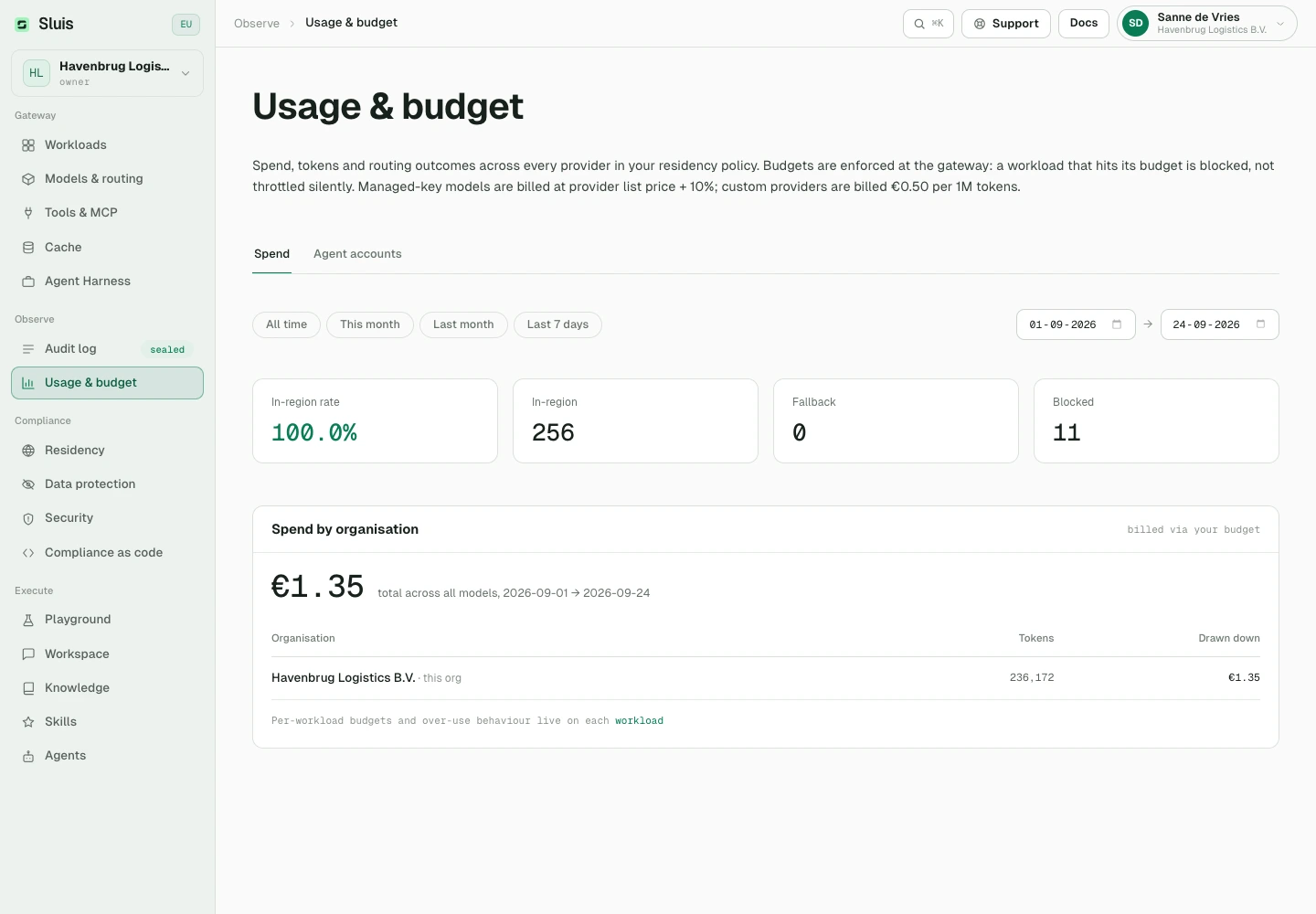
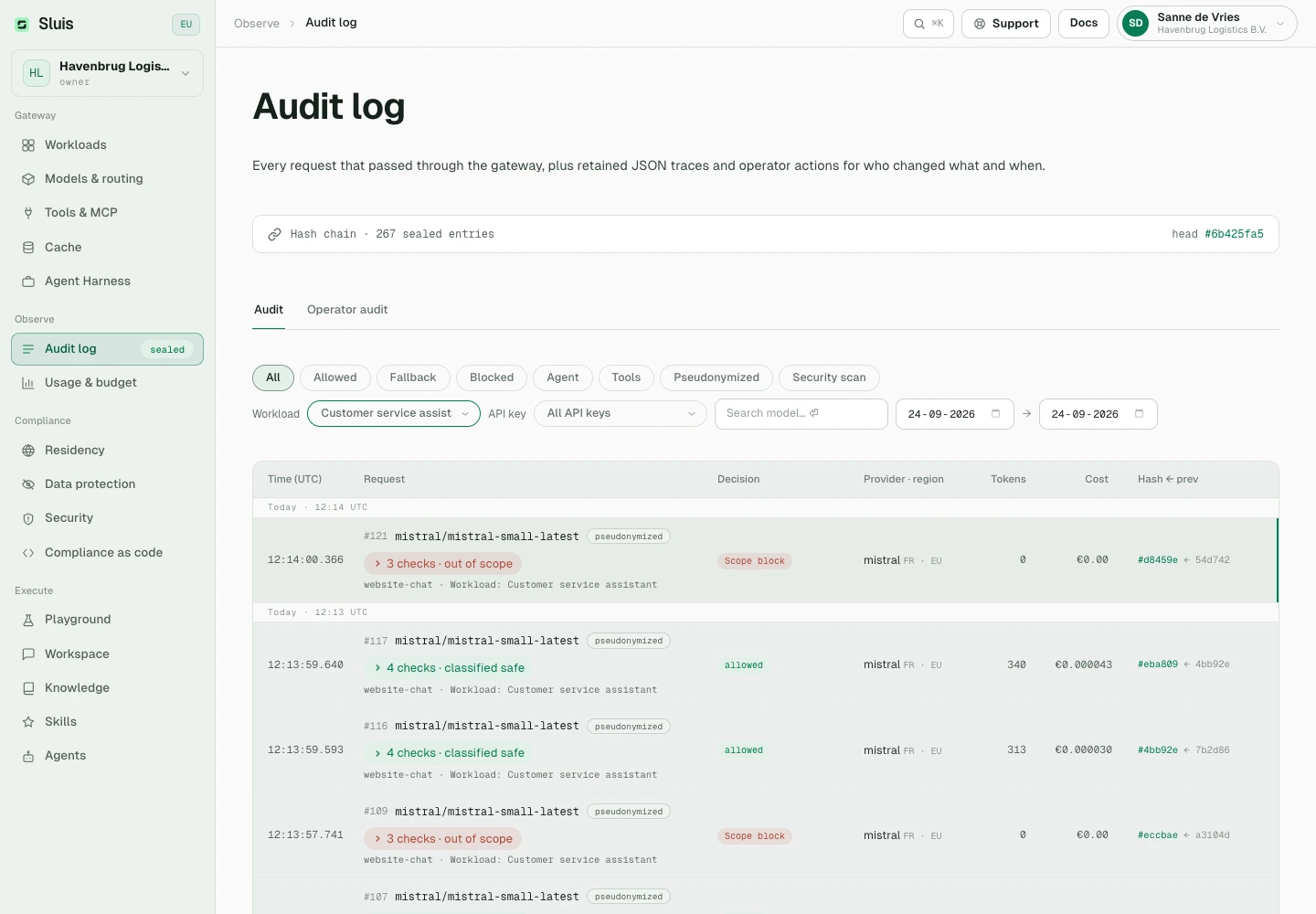
Check Usage & budget and the audit log in the active organisation. Self-serve usage is prepaid and billed through the top-level paying organisation; a sub-organisation does not become a separate payer. Owners manage credit in Billing. Operator-approved invoice or manual arrangements are exceptions. Adding a document to Knowledge is metered too: its embedding is priced like an embeddings call and counts toward your monthly Workspace budget.
For access or policy refusals, ask an owner or admin to check Workspace access, model restrictions, residency and tool grants. The code workspace_disabled means Workspace conversations are off for the organisation; workspace_only_account means your account has Workspace-only access, so the console is not available. For budget or credit refusals, check the applicable cap and payer balance. On upload or connection failure, keep your draft, resolve the reported cause and try again. To end an answer that is still arriving, use Stop rather than sending again.