Sluis Chat
Use Chat, agents, Skills and Knowledge. Configure access, models, capabilities and budgets for your organisation.
Start a conversation
Open Sluis Chat and sign in with your Sluis account. Check the active organisation in the account menu. Chat must be enabled for that organisation; ask an owner or admin if access is unavailable. The browser, desktop and mobile apps use the same workspace.
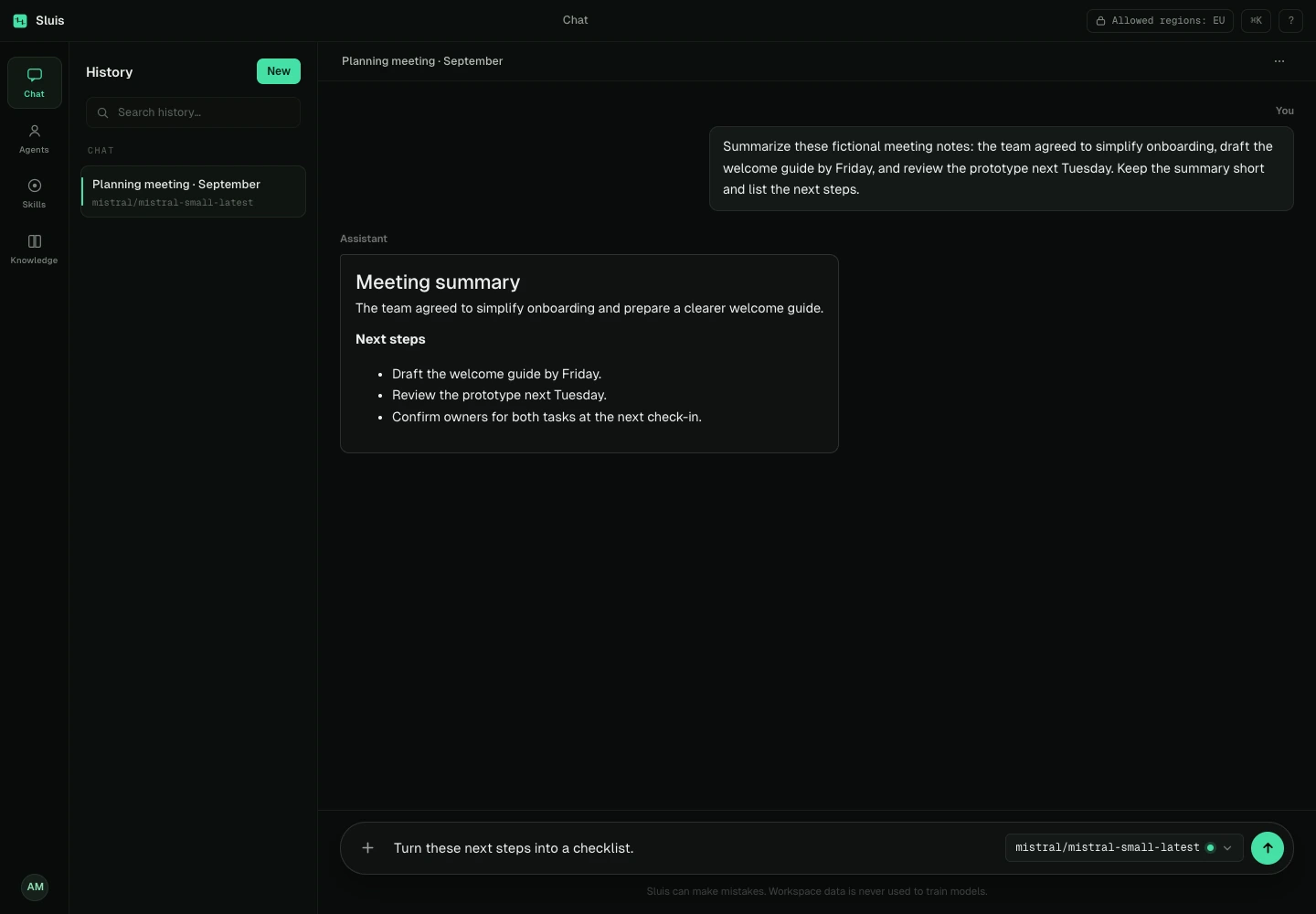
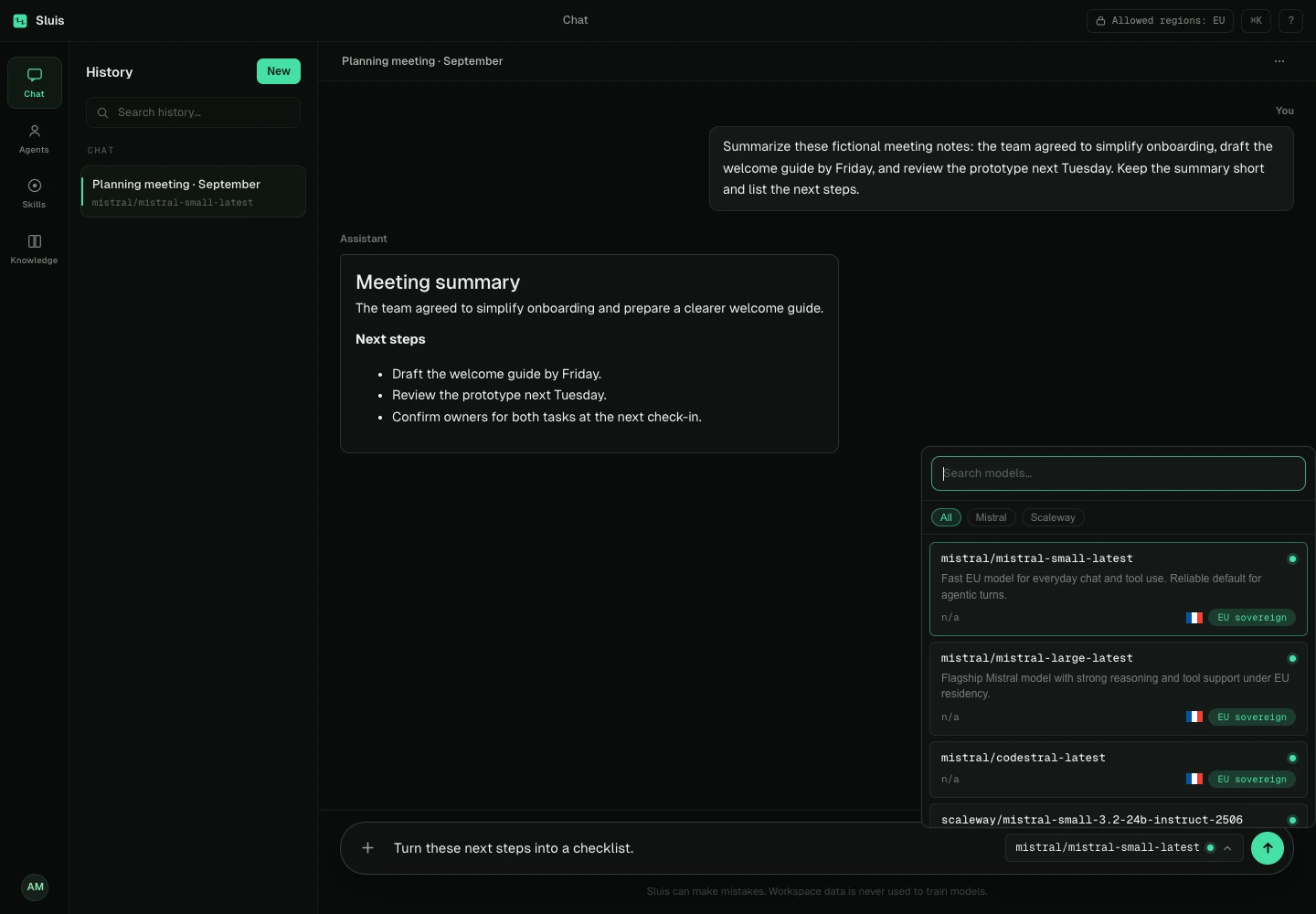
Start a new chat, select an available model and send your question. The model picker explains policy restrictions; choosing another model never bypasses them. On desktop, Enter sends when enabled and Shift+Enter adds a line; on touch keyboards Enter adds a line. Reopen earlier conversations from the list.
Attachments and generated files
Use the plus button to attach a document or image. Inspect or remove attachments before sending and resolve any upload error first. Availability depends on organisation settings, private storage and the selected model.
Ask for a downloadable Word or PDF document, document anonymisation or an image in ordinary language. These tools must be enabled and supported by the deployment. Image generation also needs an available image model permitted by policy; the result appears as an image with a Download action. Generated files remain subject to retention and access controls.
Agents, Skills and Knowledge
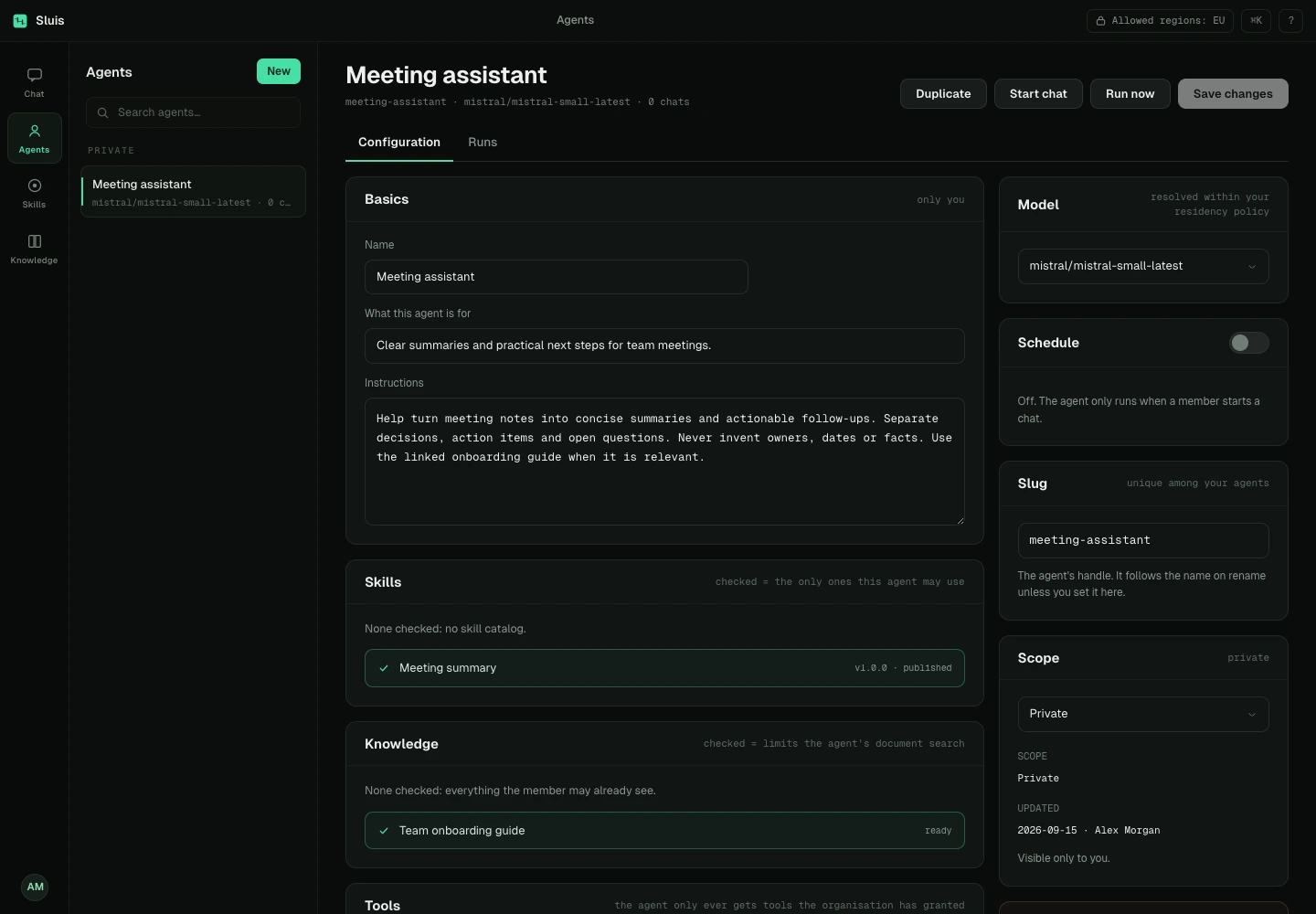
Open Agents, choose an agent and start a chat, or type @ in the composer to select one. An agent bundles instructions, an optional model, tools, Skills and Knowledge. Create a private agent for yourself; organisation agents are shared and only owners or admins may edit them.
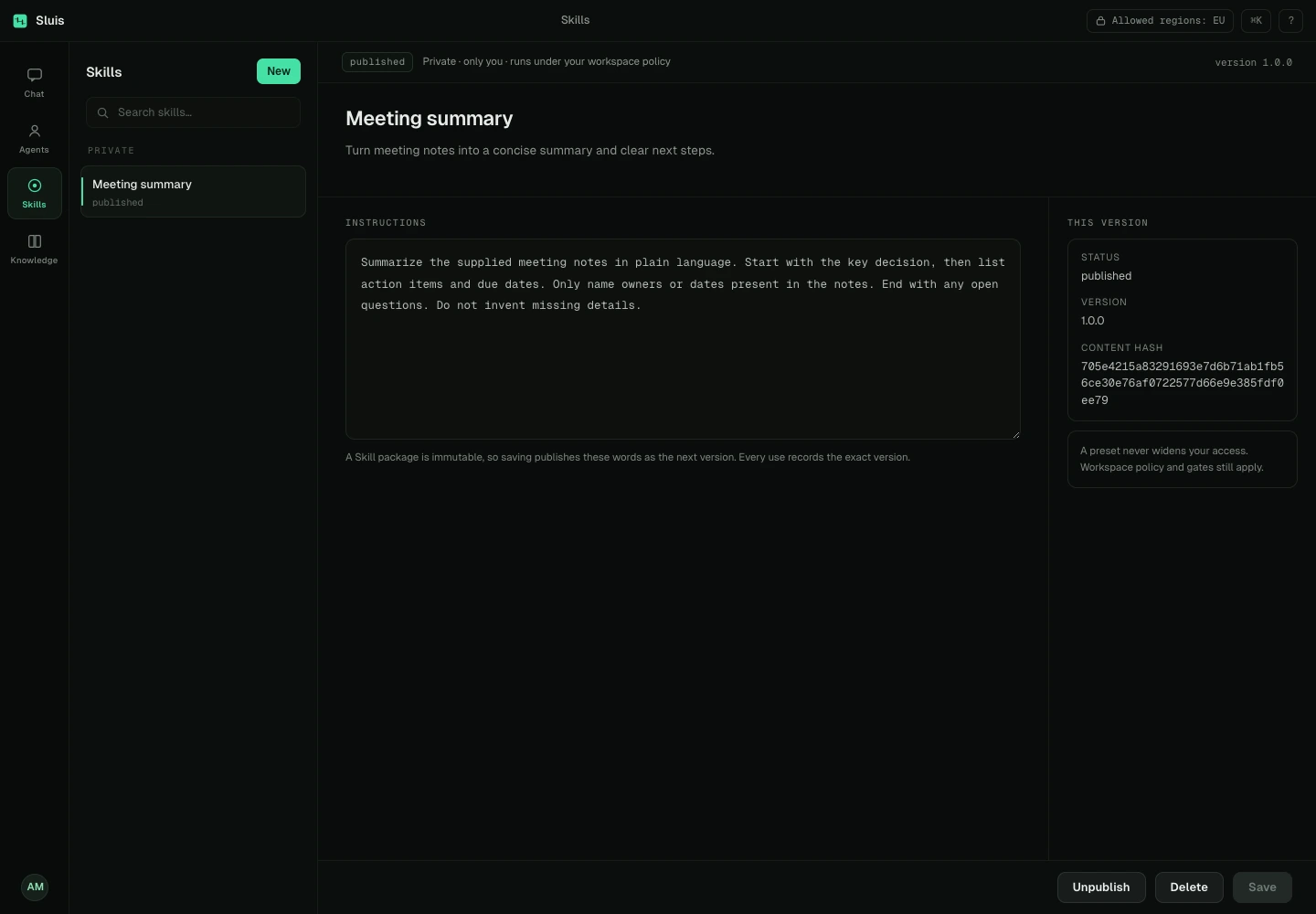
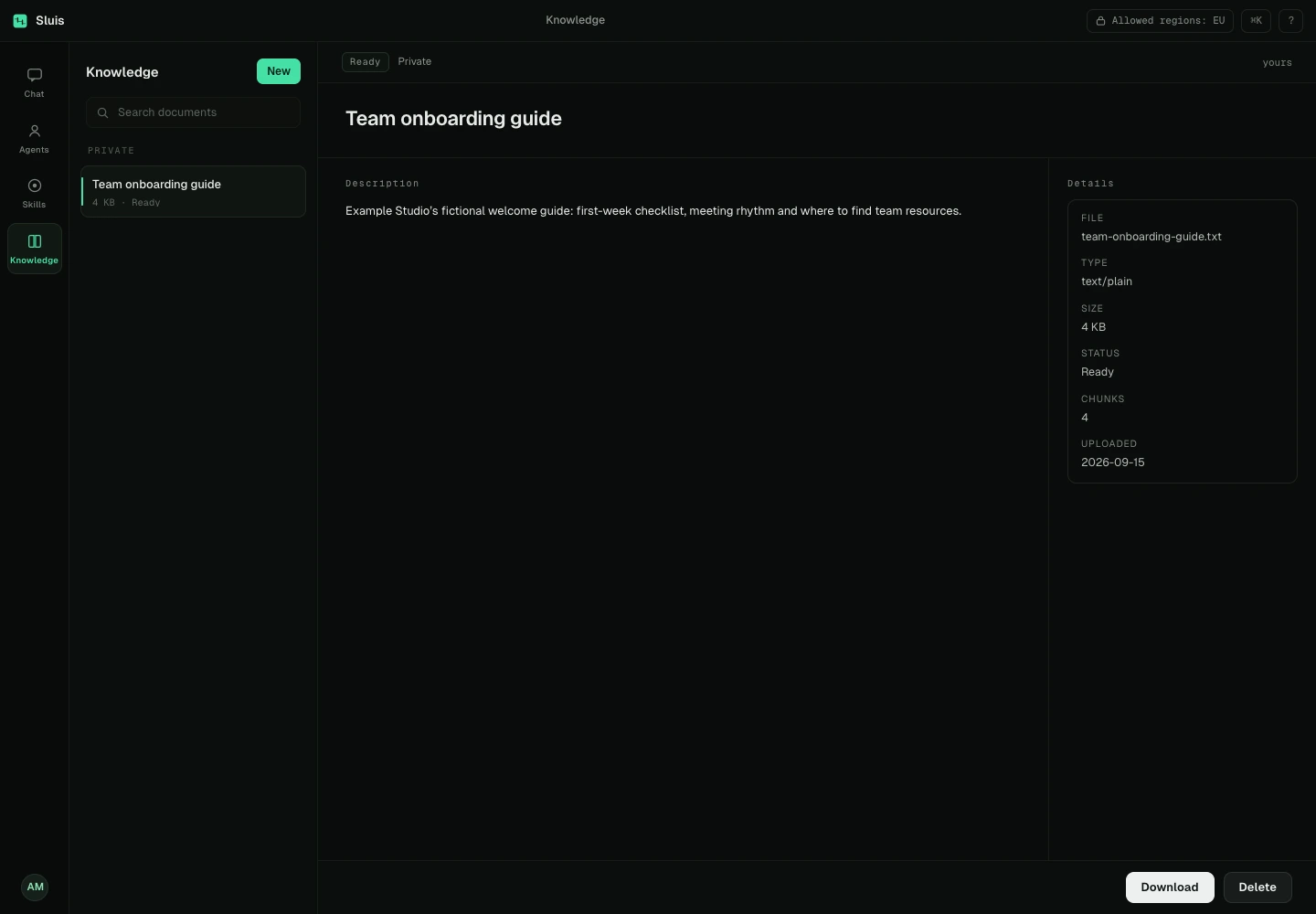
Skills are reusable instructions with published versions. Link the Skills an agent may use in its editor. Knowledge holds private or organisation documents: upload a document, inspect its status and link it to an agent. No linked Knowledge documents means the agent may search all documents visible to you; no linked Skills means no Skill catalog. Check the sources under answers.
Preferences, policy and receipts
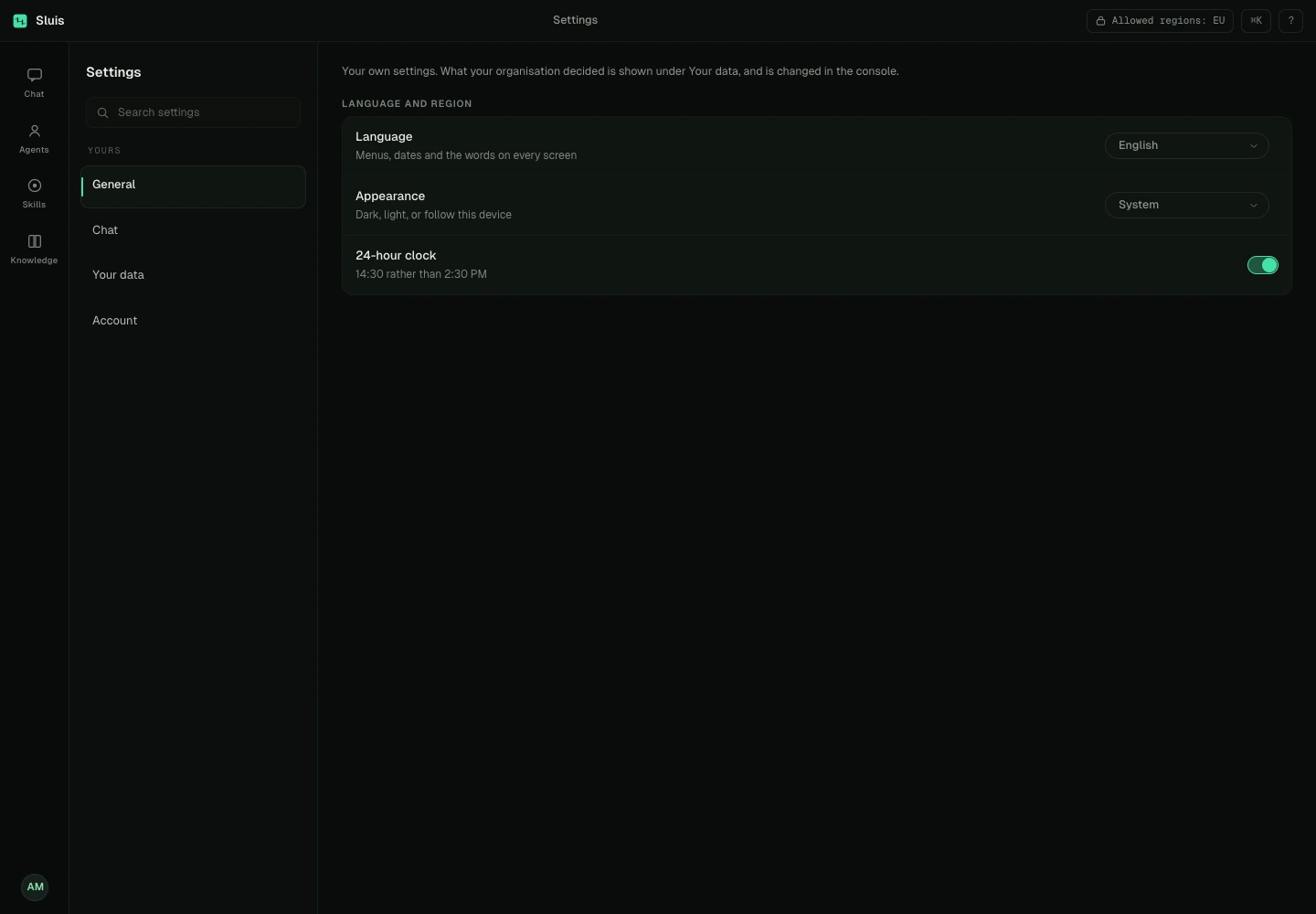
Open Settings from the account menu to choose language, dark/light/system appearance, default model and Enter behaviour. Your data shows the current organisation policy read-only. Personal preferences and agent settings cannot enable capabilities your organisation has disabled.
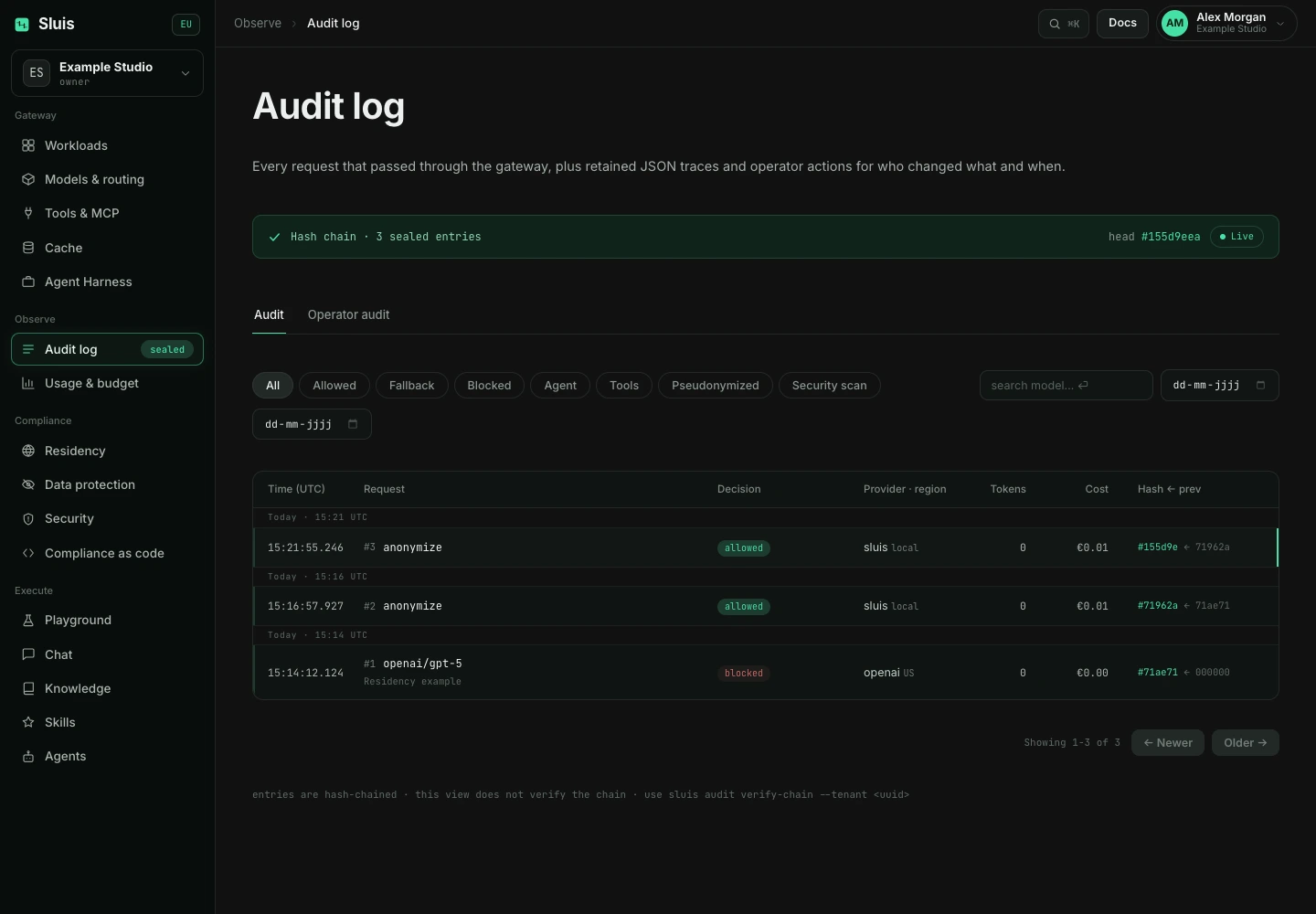
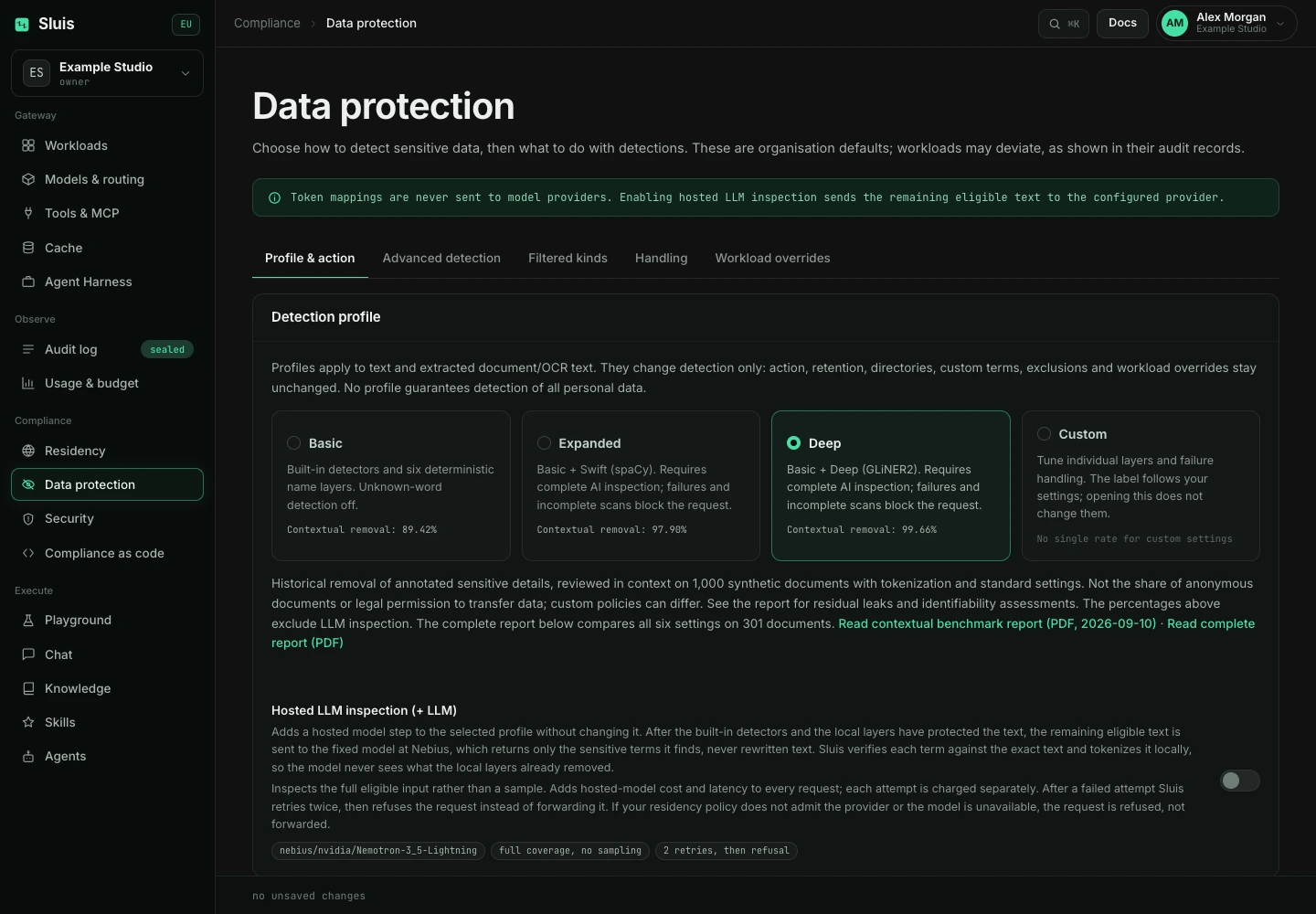
Model and tool calls pass through the gateway controls. Inspect the route and receipt when available; a seal records an audit event, not a guarantee that an answer is correct. Data protection, permitted jurisdictions and retained content depend on the effective policy. Review important output before using it.
Administration and access
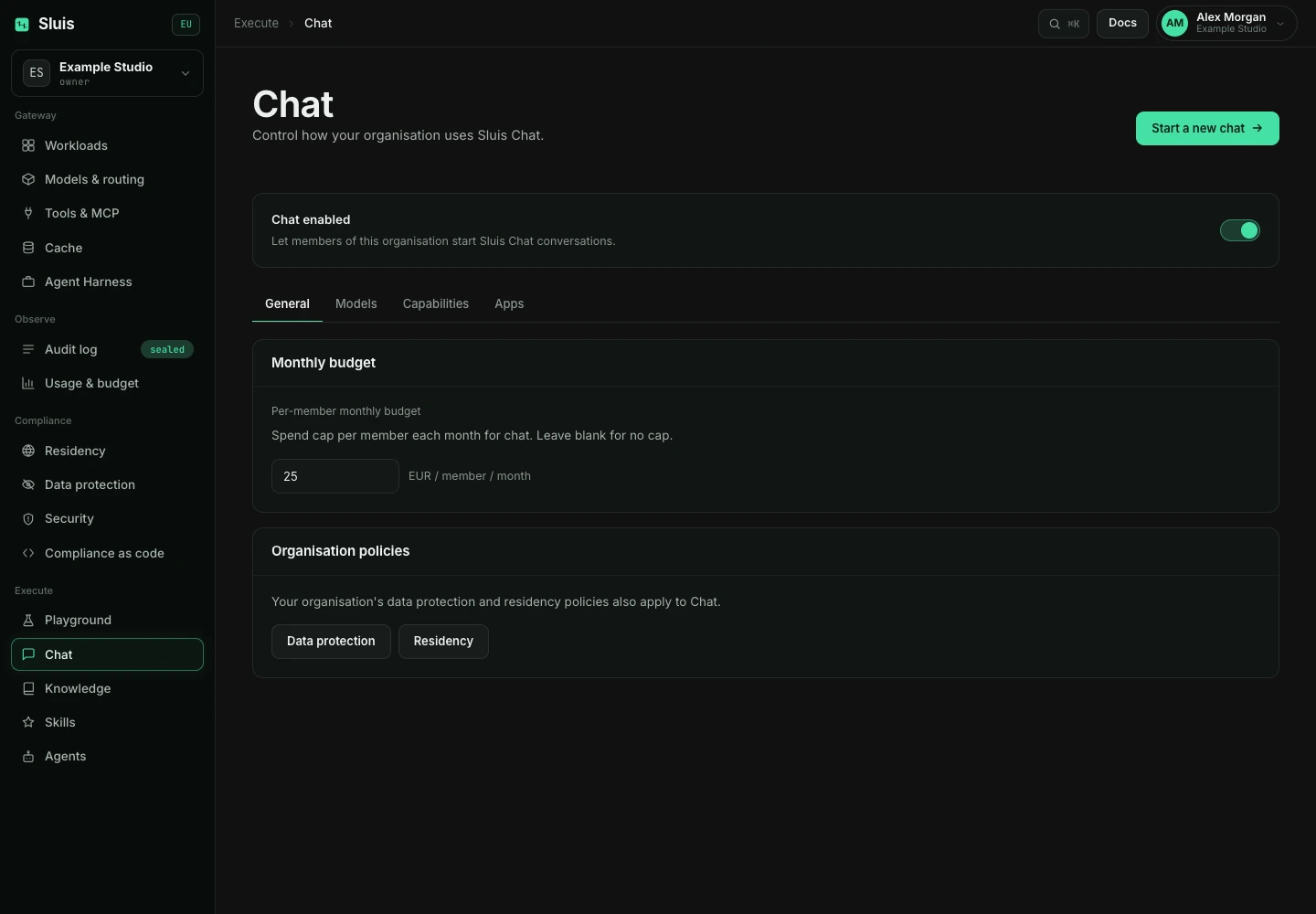
Owners and admins manage Chat in the console. Enable the Chat feature in organisation settings, then open Chat configuration. General controls whether members can start conversations and sets a monthly euro budget per member; blank means no per-member cap. Organisation budgets and billing still apply.
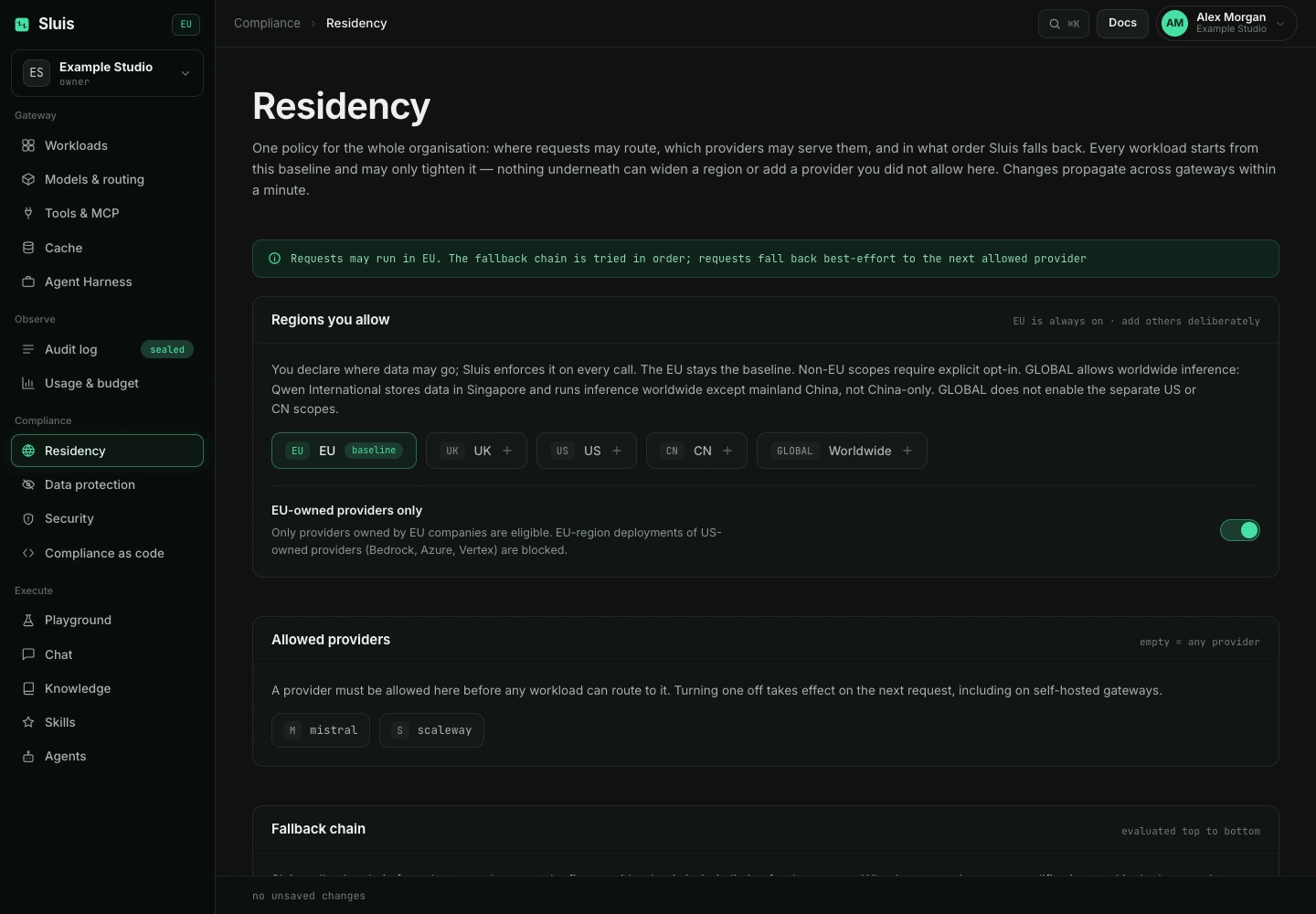
In Models, allow the full eligible catalog or select a restricted set and a default from that set. Residency and provider availability still apply. Save changes to apply them, or Cancel to restore the saved configuration. Use Members to invite colleagues and manage roles; being a member does not grant administration rights.
Capabilities and shared resources
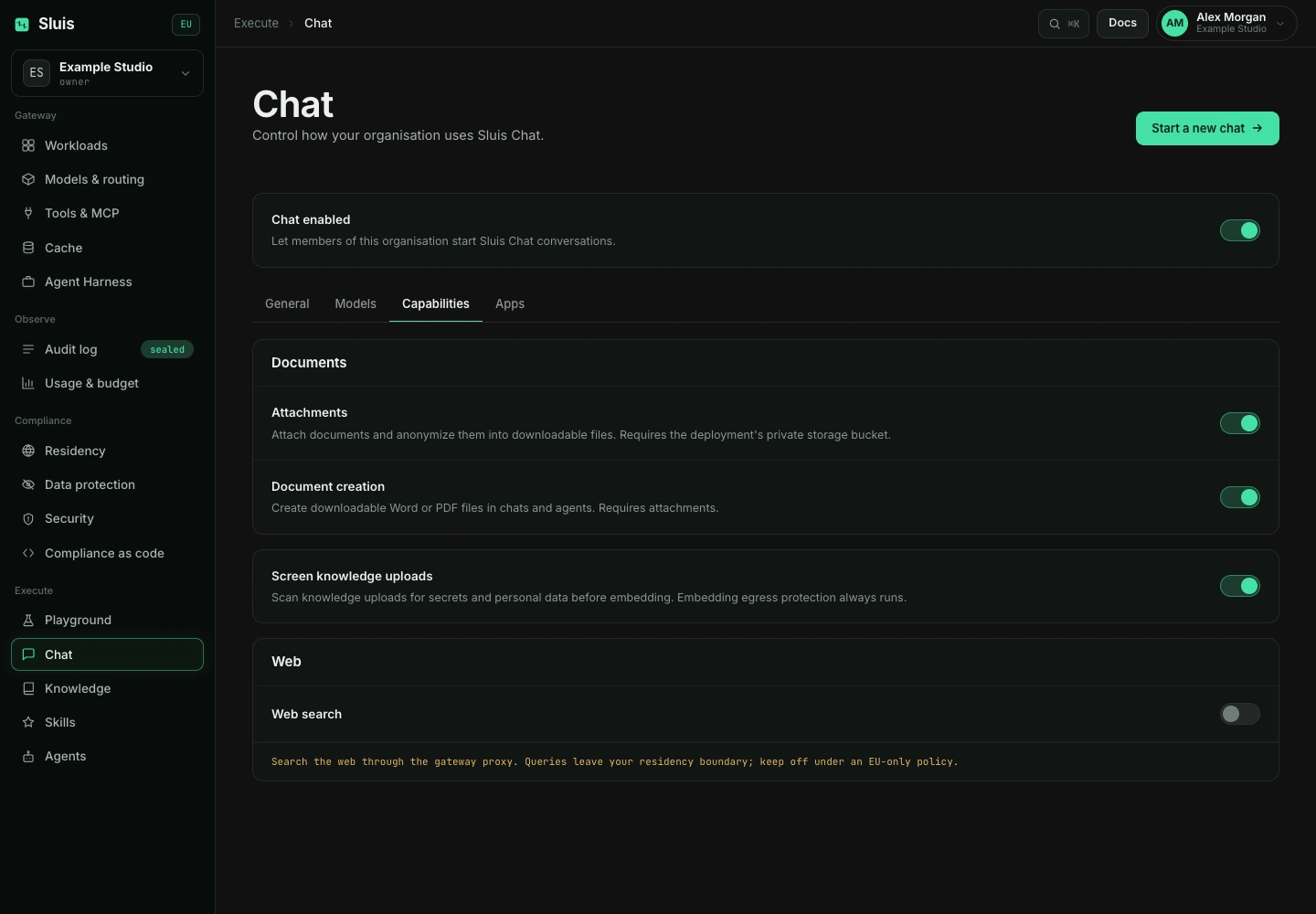
In Capabilities, configure attachments, document creation, Knowledge upload screening and web search. Attachments need private storage; document creation depends on attachments. Web queries leave the residency boundary, so keep web search off for an EU-only policy.
Manage shared agents, Skills and Knowledge in their console sections. Register MCP servers and grant Chat access under Tools & MCP. An agent only receives the intersection of its selected tools and the organisation grants. Disabling an organisation capability cannot be undone in an agent editor.
Usage and troubleshooting
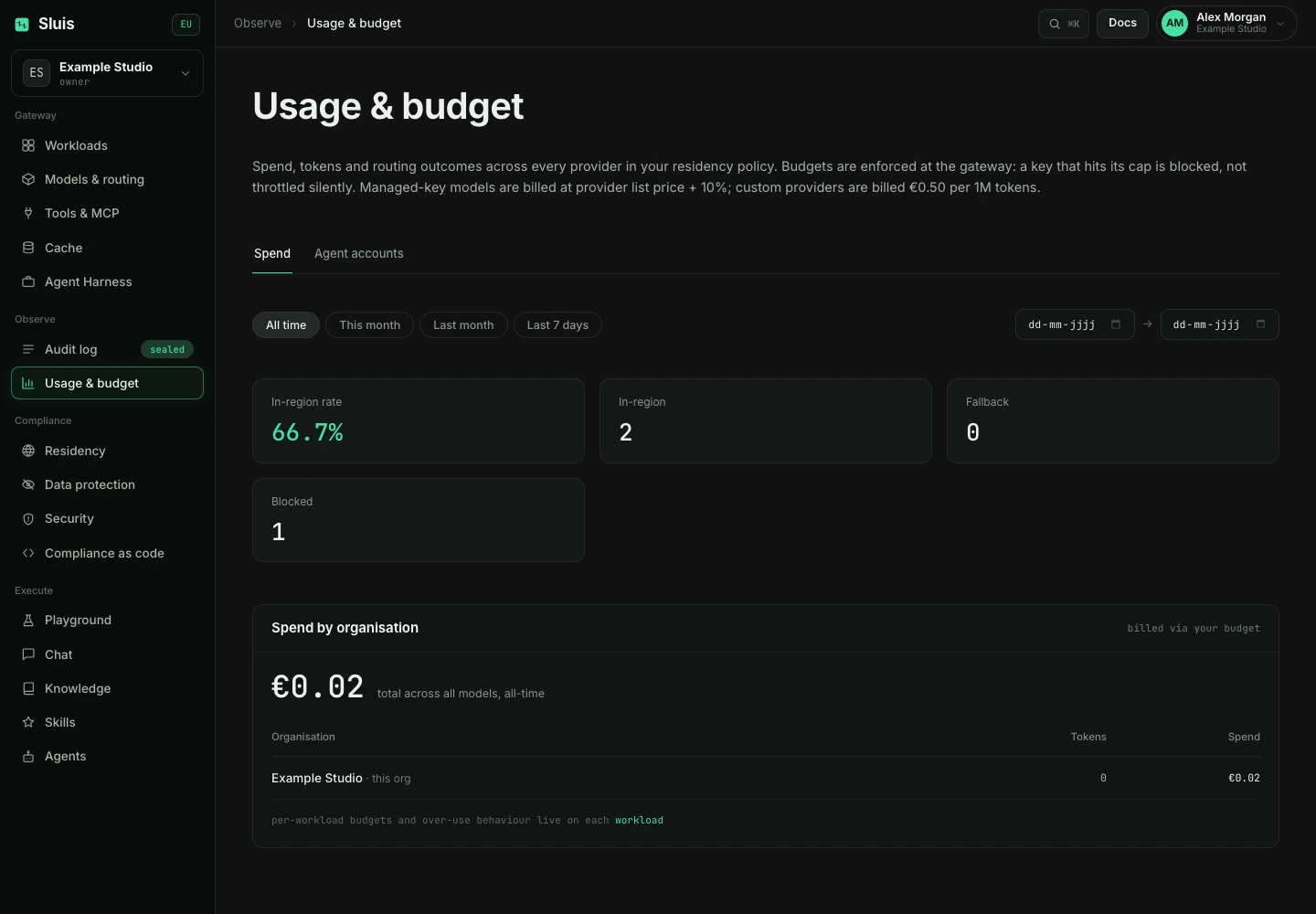
Check Usage & budget and the audit log in the active organisation. Self-serve usage is prepaid and billed through the top-level paying organisation; a sub-organisation does not become a separate payer. Owners manage credit in Billing. Operator-approved invoice or manual arrangements are exceptions.
For access or policy refusals, ask an owner or admin to check Chat access, model restrictions, residency and tool grants. For budget or credit refusals, check the applicable cap and payer balance. On upload or connection failure, keep your draft, resolve the reported cause and try again. Do not repeatedly resend a request while its result is still arriving.